
To collect performance data from remote servers, when running a load test for example, use the following PowerShell script:
clear
$testId = "doodle"
$durationSeconds = 20
$threadsPerAgent = 5
$client = ""
$counterList = @(
         ".NET CLR Exceptions()# of Exceps Thrown / sec",
         ".NET CLR Memory()# Total committed Bytes",
         "\ASP.NET\Application Restarts",
         "\ASP.NET\Request Wait Time",
         "\ASP.NET\Requests Queued",
         "\ASP.NET Applications()\Requests/Sec",
         "\Web Service()\Current Connections",
         "\Web Service()\Get Requests/sec",
         "\Web Service()\Post Requests/sec",
         "\LogicalDisk()\Avg. Disk sec/Read",
         "\LogicalDisk()\Avg. Disk sec/Write",
         "\LogicalDisk()\Disk Transfers/sec",
         "\LogicalDisk(C:)\% Free Space",
         "\LogicalDisk()\Avg. Disk Queue Length",
         "\Memory\Available MBytes",
         "\Memory\Pages/sec",
         "\Processor()\% Processor Time",
         "\System\Processor Queue Length",
         "\Network Interface()\Bytes Received/sec",
         "\Network Interface()\Bytes Sent/sec",
         "\SQLServer:Buffer Manager\Buffer cache hit ratio",
         "\SQLServer:Buffer Manager\Page life expectancy",
         "\SQLServer:Locks()\Number of Deadlocks/sec",
         "\SQLServer:Locks()\Lock Waits/sec",
         "\SQLServer:Databases()\Transactions/sec"
         )
$computers = "SERVERNAME1","SERVERNAME2","SERVERNAME3"
Get-Counter -counter $counterList -ComputerName $computers -MaxSamples 308 -SampleInterval 5 | Export-Counter -Path C:\jmeter\results\$testId.blg -FileFormat BLG -Force
The output will be a .blg file. Open this to see all your data.
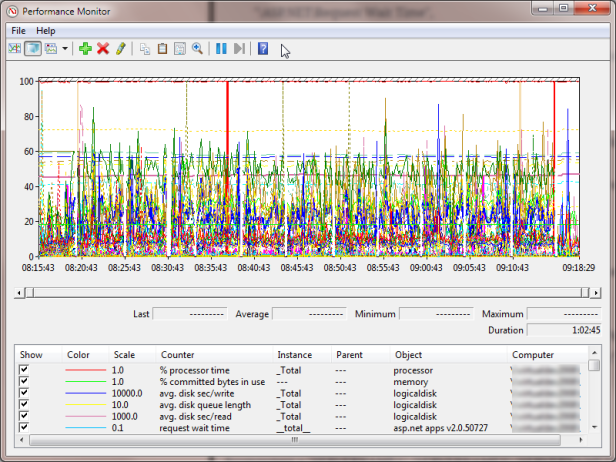
You can right-click | Save data as to export this information to CSV for easier use.

 Mark Cooper