Category: Personal

  • Arduino Uno 101: Using the SparkFun Inventor’s Kit (UK)

    Arduino Uno 101: Using the SparkFun Inventor’s Kit (UK)

    I’m an experienced programmer, but have only ever touched on electronics during A-levels and my degree course. New developer boards Arduino open up the world of micro-electronics to those with little or no experience. This is the start of my adventure:

    The kit I brought was the SparkFun Inventor’s Kit for Arduino with Retail Case resold by Relchron. I had read that it was possible to get a working example up and running in under an hour and found that was easily true.

    SparkFun Inventors Kit - Closed SparkFun Inventors Kit - Open

    The kit is neatly packaged, and all the items are well protected. The Arduino Board (in this case an Arduino Uno variant) felt very professional indeed. It was in a high quality box, printed inside and out, with a quality seal, detailed leaflet and geeky sticker pack. The extra effort and cost of all these small additions adds a air of quality to board. Confidence in this little fella is high!

    Arduino Uno in Box Breadboard, Arduino Uno and Project Holder

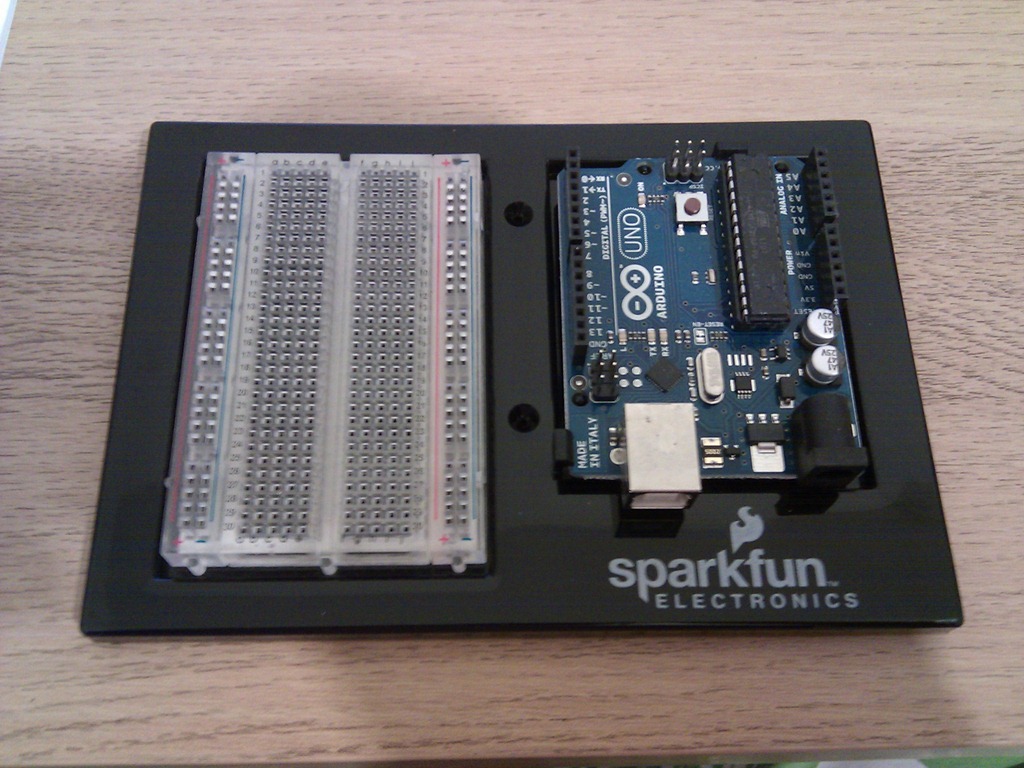
    The kit also comes with a mini Breadboard, project templates (that fit neatly over the breadboard telling you where to plug the components in) and neat holder that holds the breadboard and Uno together nicely.

    Development Software

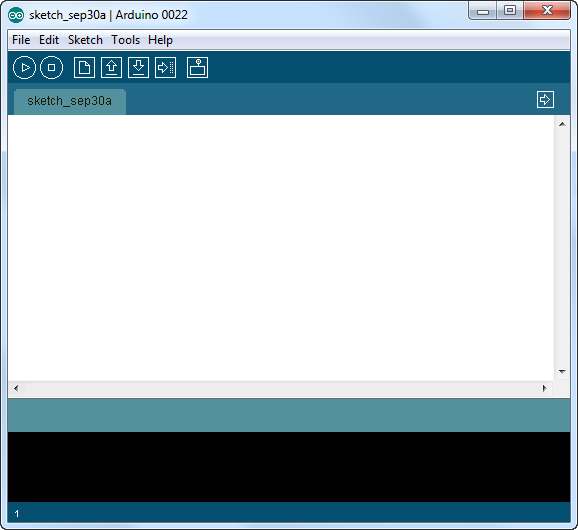
    The Arduino Development Software is downloaded and installed from http://www.arduino.cc. I’m running this on Windows 7 Ultimate 64Bit without any issues.
    SNAGHTMLaf57058  IMG_20110929_194717

    Connection

    The Arduino is connected via a USB cable (old style, massive end, no idea why they haven’t used micro usb!?). The lead is included in the pack. Once connected you have to jump through some hoops to install the drivers, but this is an issue with Win7, not the Uno. Details for doing this are in the included booklet.

    IMG_20110929_194742 IMG_20110929_195223

    Once connected, the Uno will appear under a serial COM port in the Device Manager.

    Getting Started: 101

    The first ‘101’ project to build is a simple blinking LED. Yep I know this is no iPhone 5, but it’s a sensible starting point for a novice to learn the core features of the board.

    1. Using the provided pins, attach the CIRC-01 overlay on top of the breadboard.
    2. Build the circuit as described on the overlay.
    3. Connect the USB

    That’s it. If it’s all connected properly the LED will start blinking. This must be a default program (“Sketch”) that is already loaded into the board. But obviously a core part of this kit is to program it yourself. So;

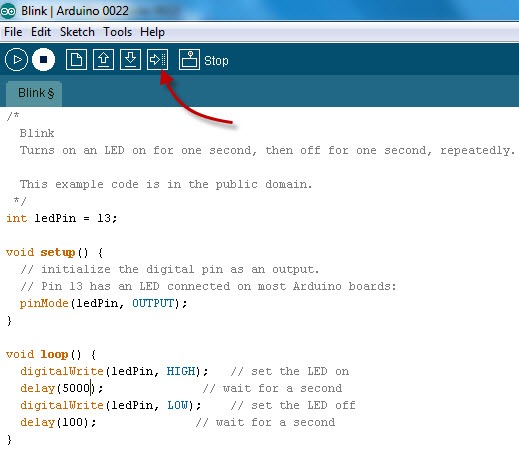
    1. In the Arduino Application, select File | Examples | 1. Basics | Blink. This will load a “blinking sketch” into the application.
    2. Modify the sketch, by changing some of the delays for example.
    3. Click the Upload button

    IMG_20110929_201200 IMG_20110929_195239

    The new Sketch will be uploaded to the Arduino and start immediately. With only a few tweaks to the Sketch you can setup a very simple morse code SOS blink:

    /*
    
      Morse SOS
    
      This example code is in the public domain.
    
     */
    
    int pinLed = 13;
    
    int dotDelay = 200;
    
    int dashDelay = 600;
    
    int letterPause = 1000;
    
    int loopPause = 2000;
    
    void setup() {
    
      // initialize the digital pin as an output.
    
      // Pin 13 has an LED connected on most Arduino boards:
    
      pinMode(pinLed, OUTPUT);
    
    }
    
    void loop() {
    
      // could be wrapped in a loop, but IMHO this reads better, so more maintainable.
    
      // S
    
      dot();
    
      dot();
    
      dot();
    
      cycleLed(letterPause);
    
      // O
    
      dash();
    
      dash();
    
      dash();
    
      cycleLed(letterPause);
    
      // S
    
      dot();
    
      dot();
    
      dot();
    
      cycleLed(loopPause);
    
    }
    
    void dot(){
    
      cycleLed(dotDelay);
    
    }
    
    void dash(){
    
      cycleLed(dashDelay);
    
    }
    
    void cycleLed(int cycleLedTime){
    
      digitalWrite(pinLed, HIGH);   // set the LED on
    
      delay(cycleLedTime);              // wait for a second
    
      digitalWrite(pinLed, LOW);    // set the LED off
    
      delay(cycleLedTime);
    
    }

    IMG_20110929_201147

    And we’re done. All in all, this took about 25-30 mins… so, what shall I build next?…hmmm…

  • Arduino Uno (UK)

    Today I got an Arduino Uno and I’m getting my geek on!

    IMG_20110929_194544

  • 10% Project Ideas

    10% Project Ideas

    So I have a ream of ideas and techs to look into… which one(s) first?…

    Technologies?

    • Continuous Integration
    • Web Unit Testing
    • Mocking
    • Prototyping
    • Android Dev
    • Atlassian Suite 

    Ideas / Concepts?

    • 10% Project Website
    • Team Holiday Planner
    • Room / Resource Booker
    • Travel Toiletries Website 
  • 10% Project

    10% Project

    Google are well known for their attitude towards encouraging employee creativity. So much so they have an initiative that allows all(?) employees to spend 20% of their time working on personal interest projects.

    A 20% project can be anything that sparks interest for the individual, in general they are usually something to do with improving the way that they are working, or the software they are using.

    I read today that over 50% of the google product line up have come from 20% projects – including gmail!

    Anyway I’ve wanted to do this ever since I found out about it, and now that I’m working for myself again the time has come to do it. I can’t quite afford 20% yet, but 10% will do. A day every fortnight focussed on learning new a tech, doing some design work or building a fanciful site. And not worrying about revenue generation or payment. That’ll do nicely!

  • Paperless Home

    Paperless Home

    Many, many years ago I had a flatbed scanner and that scanner had a gnatty ‘scan-to-email’ function that would email any scans as a PDF attachment.

    Many years later (but still many years ago) I signed up for the Google Documents online service and registered for their Email to Documents service. This was a hashed email address that would save attachments into the Google Docs cloud (and convert them if you wish).

    This combination of scan to email to cloud has had me literally salivating for years – it puts the paperless office within everyone grasp. So, finally after much procrastination I have finally got my act together, brought a duplex scanner (HP Officejet Pro 8500A Plus e-All-in-One Web Enabled Printer ), with a wireless internet connection ready to put my master plan in to action…

    After unboxing, what should I find?? A flipping Google Docs Storage Application! Yep, the scanner comes with a prebuilt in application that does exactly what I wanted… So, have I now got a paperless office? Well no, because the scanner also has a lovely printer function too, and to not use that would be a waste

  • iPhone or Nexus One – My Two Pennies Worth

    Someone asked me the other day “if you were robbed at knifepoint and had both your iPhone and your Nexus one stolen, and only had enough money to buy one back, which would it be?”… at the time the jury was out, I was undecided… today the jury has returned with a decision… for me, the choice is Nexus One…

    I’m not trying to be different, or controversial and I’m NOT an “iPhone hater”. On the contrary, I think the iPhone is awesome, and as a consumer I owe Apple a huge debt of gratitude for making the rest of the industry pay attention to industrial design and user experience. The other players have inevitably been forced to invest plenty of their cold hard cash into R&D – and the results are now coming to market.

    Now, there are stacks of iPhone / Nexus One reviews about, so I don’t want to repeat these, instead this post is purely opinion based. These are the reasons for my choice;

    1. Customisation
      This is the #1 deciding factor – the customisation that is possible with Android that you don’t get with iPhone OS 3.0.
      I like being able to put widgets on my home screen, rather than just icons.
      I like being able to choose my own background, themes, dictionaries and security options.
    2. Freedom
      I like being able to connect the handset via USB and have it switch into portable storage mode, so it functions as a USB Drive.
      I like being able to load my own music (ahem!) in which ever format I choose.
      I like being able to buy an unlocked handset and choose my own service provider.
    3. Synchronisation
      I like having all my Google account information synchronised without fuss; Gmail, Contacts, Tasks, Maps, Analytics, YouTube, Picasa etc…
    4. App Store
      There are plenty of apps that I want. Most of the usual iPhone apps already have versions available in the Android Market (Facebook, Twitter etc).
      I can write my own applications, using free tools and free SDK’s.
    5. Haptic Hard Keys
      I love having more hard key options available for navigation and contextual input. The iPhone only has one button, that only takes you back to your home screen. If you are used to this, then it works just fine. But once you are used to the multiple inputs on the N1, you’ll get frustrated having to scan the UI looking for context options, the lack of a simple back button on iPhone now drives me crazy! The hard keys also provide a tiny ‘haptic‘ vibration when pressed, and this is a surprisingly nice feature…
    6. The Little Things
      The N1 comes with a protective pouch – I like to keep my gadgets in good order!
    7. SMS Spell checking
      The spell checking is really really good. I can just mash away at the keyboard with my fat fingers, and 99% of the time my ‘spilling erorrs‘ are corrected automatically.

    Inevitably there are some features of the platform that I don’t like;

    1. I have had to reboot the handset twice, when the touch screen got out of sync – this may have been down to an app that i have downloaded – not got to the bottom of this yet – it could be hardware / it could be software.
    2. You need to be tech savvy to set up the handset. Because it is not offered on any UK contract deals yet you will have to setup your own WiFi, Mobile Internet and MMS settings. Pretty easy to do, if you know where to find the settings. Because of this I wouldn’t buy this phone for my wife – it isn’t as easy to just pickup and use as the iPhone.
    3. Some apps just don’t work. Because of the open nature of the Android platform, not all applications are distributed via the official Android Marketplace. Some apps are therefore badly written, and function poorly.
    4. I’m not getting very good mobile signal at home. Not a problem for Internet, as the WiFi is excellent, but my old cell phone had better reception, and the iPhone has good reception too, albeit on a different network.
    5. There are no sync options for handset video to be uploaded to Picasa – !!
    6. Because the handset comes from the US, it doesn’t include a UK charger.
    7. The voice recognition IS amazing BUT requires a really good Internet connection which renders it pretty much unusable on a mobile connection – it’s faster to type.

    All in all (& IMHO) the good points of the N1 outweigh the bad, and if I only had the option to buy one more handset, the N1 would be it.