Category: Articles

  • Rendering output using Razor

    Rendering output using Razor

    When rendering output from a razor template it is important to remember the distinction between

    @{ ...}  and @(...)

    Curly braces will cause the output to execute, whilst the regular parenthesis will cause the output to render.

    As an example that tripped me up during rendering of a ViewComponent in the CamperFinder demo, the following executes the output, but does not render it.

    <div>     
    @foreach (var vehicle in Model.Vehicles) {
      @await Component.InvokeAsync("VehicleSummary", vehicle);
    }
    </div>@

    The inner await block is executed within the scope of the loop, within {} braces.

    By adding parentheses around the await following renders the content as we want it.

    <div>     
    @foreach (var vehicle in Model.Vehicles) {
      @(await Component.InvokeAsync("VehicleSummary", vehicle));
    }
    </div>

    Kudos: https://stackoverflow.com/a/44835742/75594

  • Free website hosting #4 – AWS

    Free website hosting #4 – AWS

    This is the final part of a four part series looking at free hosting from modern cloud providers:

    In this article we look at the offering from Amazon web services, and the static hosting capabilities of the S3 storage bucket.

    If this AWS S3 storage free? Well, mostly.

    As part of the AWS Free Usage Tier, you can get started with Amazon S3 for free. Upon sign-up, new AWS customers receive 5GB of Amazon S3 storage in the S3 Standard storage class, 20,000 GET Requests, 2,000 PUT Requests, and 15GB of Data Transfer Out each month for one year.

    https://aws.amazon.com/s3/pricing/

    Step 1 – login or create an AWS account

    If you have an AWS account then sign in to the console, otherwise sign up for the 12 month free trial.

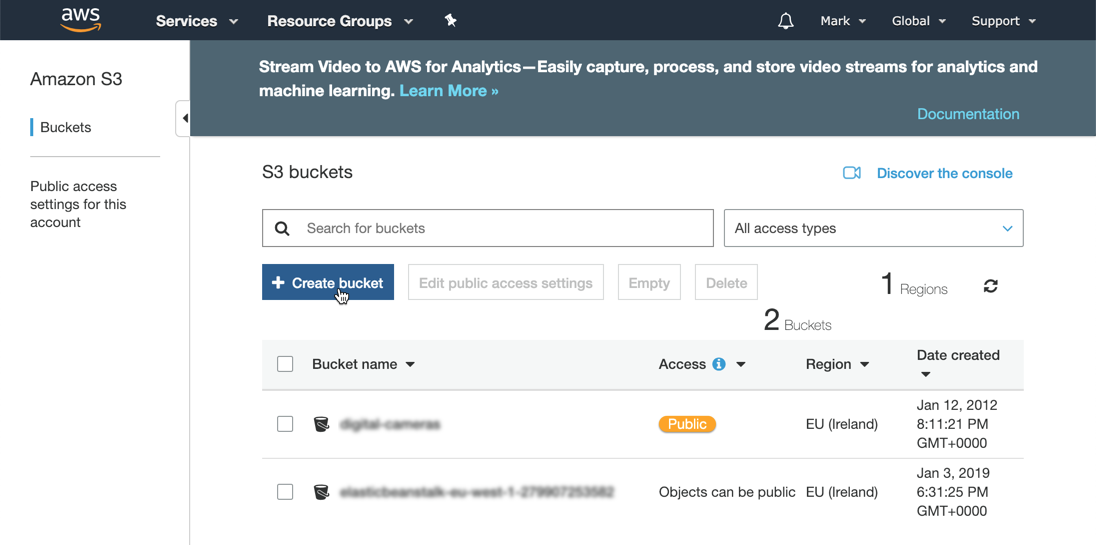
    Step 2 – create an S3 bucket

    • Enter a bucket name, select a region and copy settings from an existing bucket if needed.
    • Click Next through steps 2 and 3 and then Create bucket again on step 4 and the new storage bucket will be created.

    Step 3 – upload files

    Upload the standard index.html file using the onscreen picker and selecting the default options.

    • On the properties tab select Static website hosting and select the option Use this bucket to host a website, and enter index.html in the index document field. Click Save to complete the change.

    Step 4 – set permissions

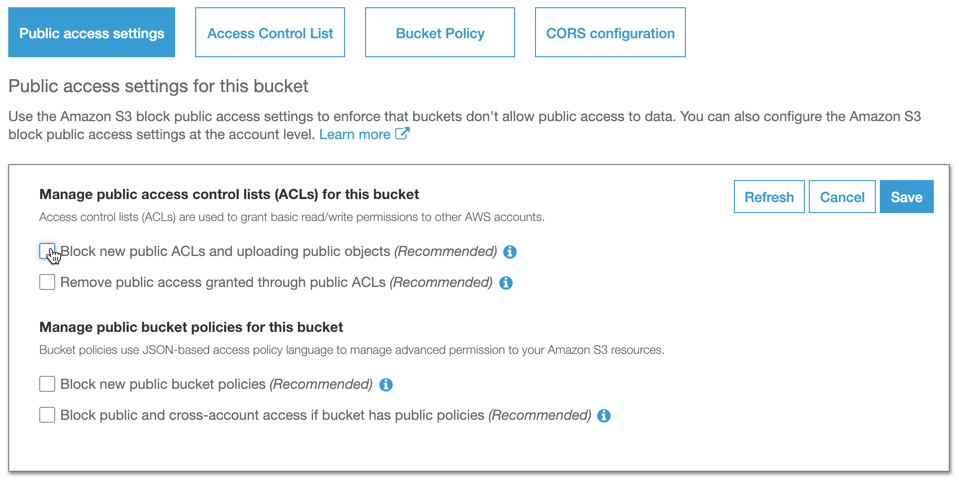
    On the permission tab remove the restrictions on public access and click Save to commit the changes.

    • On the bucket policy tab, enter the following policy to enable permission for unauthenticated users to access the files:

    {
    “Id”: “Policy1546543764975”,
    “Version”: “2012-10-17”,
    “Statement”: [
    {
    “Sid”: “Stmt1546543763921”,
    “Action”: [
    “s3:GetObject”
    ],
    “Effect”: “Allow”,
    “Resource”: “arn:aws:s3:::my-free-website/“, “Principal”: “
    }
    ]
    }

    • This policy syntax can be also be generated using the policy generator tool
    • Once the permission has been granted, a notification will be displayed
    • From the static hosting page click the link to view the hosted website

    Summary

    A simple a straight forward process, bit again no native source control from Git. AWS does offer CodeDeploy but you need to setup up resource groups, security groups and a Lamba pipeline to get this working. Compared to other offerings this feels like a big effort.

  • Free website hosting #2 – Azure Web Apps

    Free website hosting #2 – Azure Web Apps

    In the second part of this series we take a look at the first free web hosting option in Azure – Wep Apps.

    Azure comes with a free hosting tier. This is limited to 1GB and on shared infrastructure, so won’t suit a website needing high performance, however for free hosting this is to be expected.

    In this example we’re going to use the same GitHub repo and webpage created in part-1.

    Step 1: Create an account or login

    If you have an Azure account you can login to the Azure portal using your Microsoft login credentials.

    TIP: Learn more about accounts, subscriptions and logins.

    To create a free account navigate to https://azure.microsoft.com/en-gb/free/ click the Start for free button, and follow the instructions.

    Step 2: Create a web app

    Once you have logged into the portal;

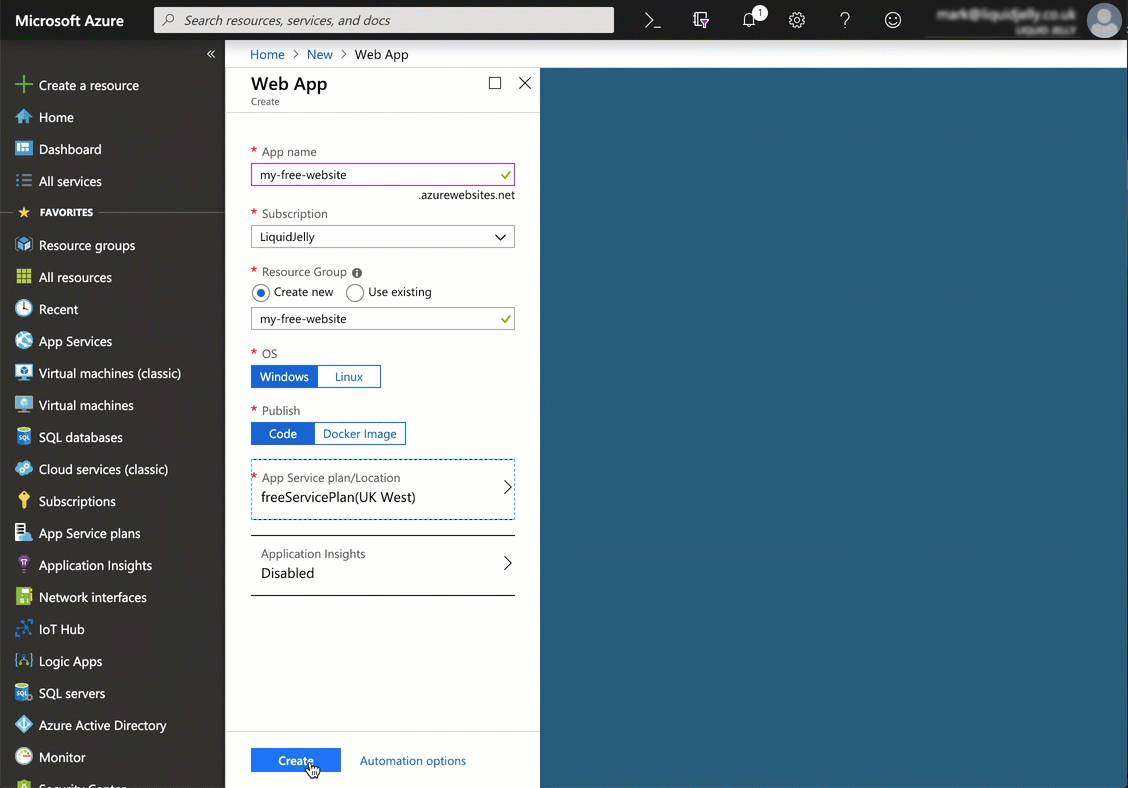
    1. Select Create a resource | Web | Web App
    2. Complete the fields
      1. App name must be unique within the AzureWebsites domain, not just your account. A red message will appear if this is not correct.
      2. Choose the subscription where you want the resource saved.
      3. You are going to host a static website, so you can use Windows or Linux
      4. Publish should be set to Code

    Step 2b: Create a free service plan

    This is the important bit: the App service plan must be F1 (free).

    1. Select App Service plan | Create new
    2. Enter an App Service plan name and select a suitable location.
    3. Click Pricing tier, then under the Dev/Test tab select F1 then click Apply
    4. Click OK to create the new App Service plan.
    5. Click Create to create the web app

    To find your new website, click on Home. The website should be at the top of your recent resources list.

    Step 3: Add auto-deployment from Git

    This step will work from any Git repository, not just GitHub. However GitHub and Azure are both managed by Microsoft, so this feels like a sensible choice.

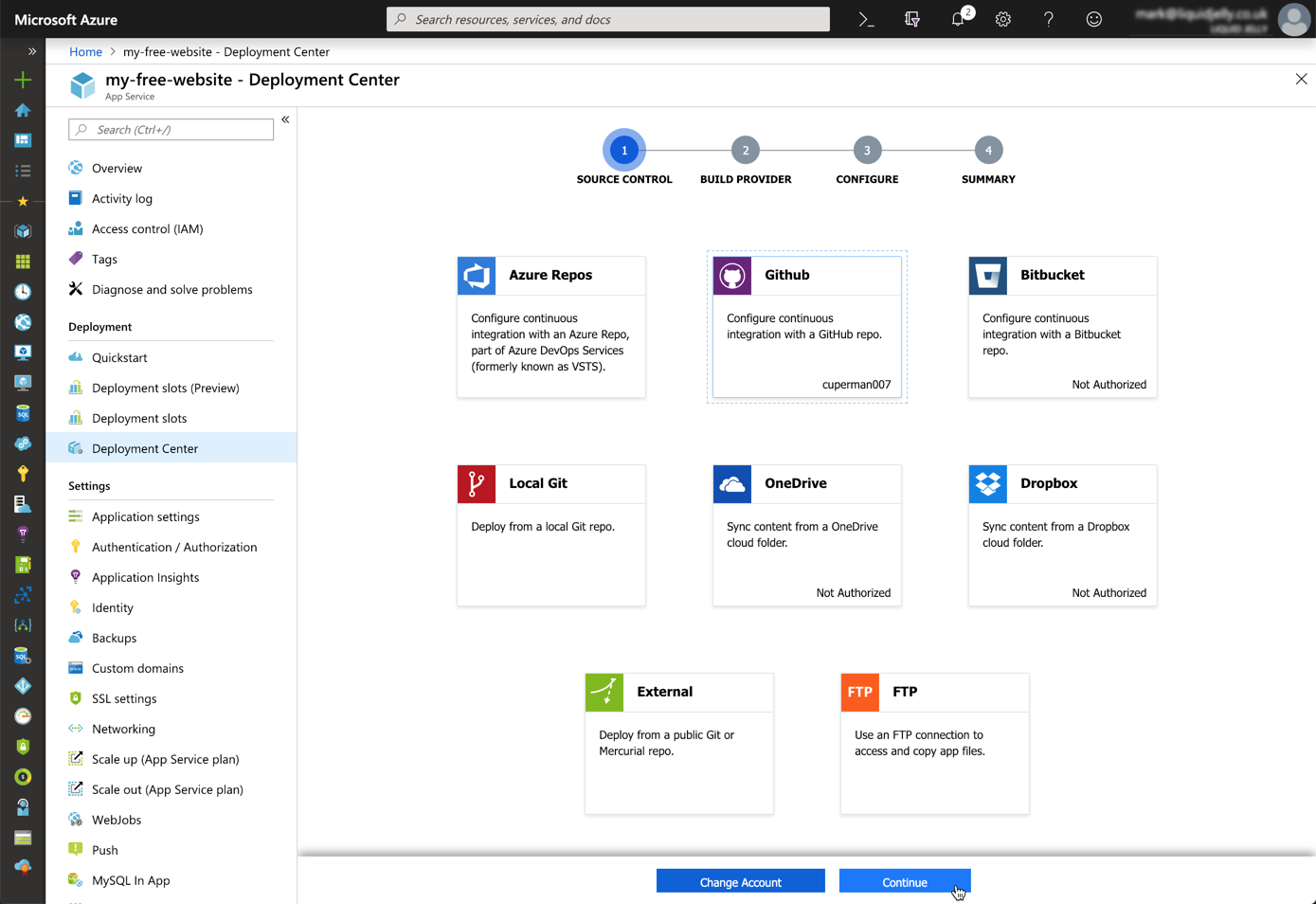
    • Open the website blade then select Deployment Center
    • On the first page (1 – Source Control) a list of available source options are available. Subsequent steps will reflect the choice made here. We’ll use the same source code from part 1, so select GitHub. You will need to authorise your subscription to access GitHub if you have not already done so.
    • Click Continue
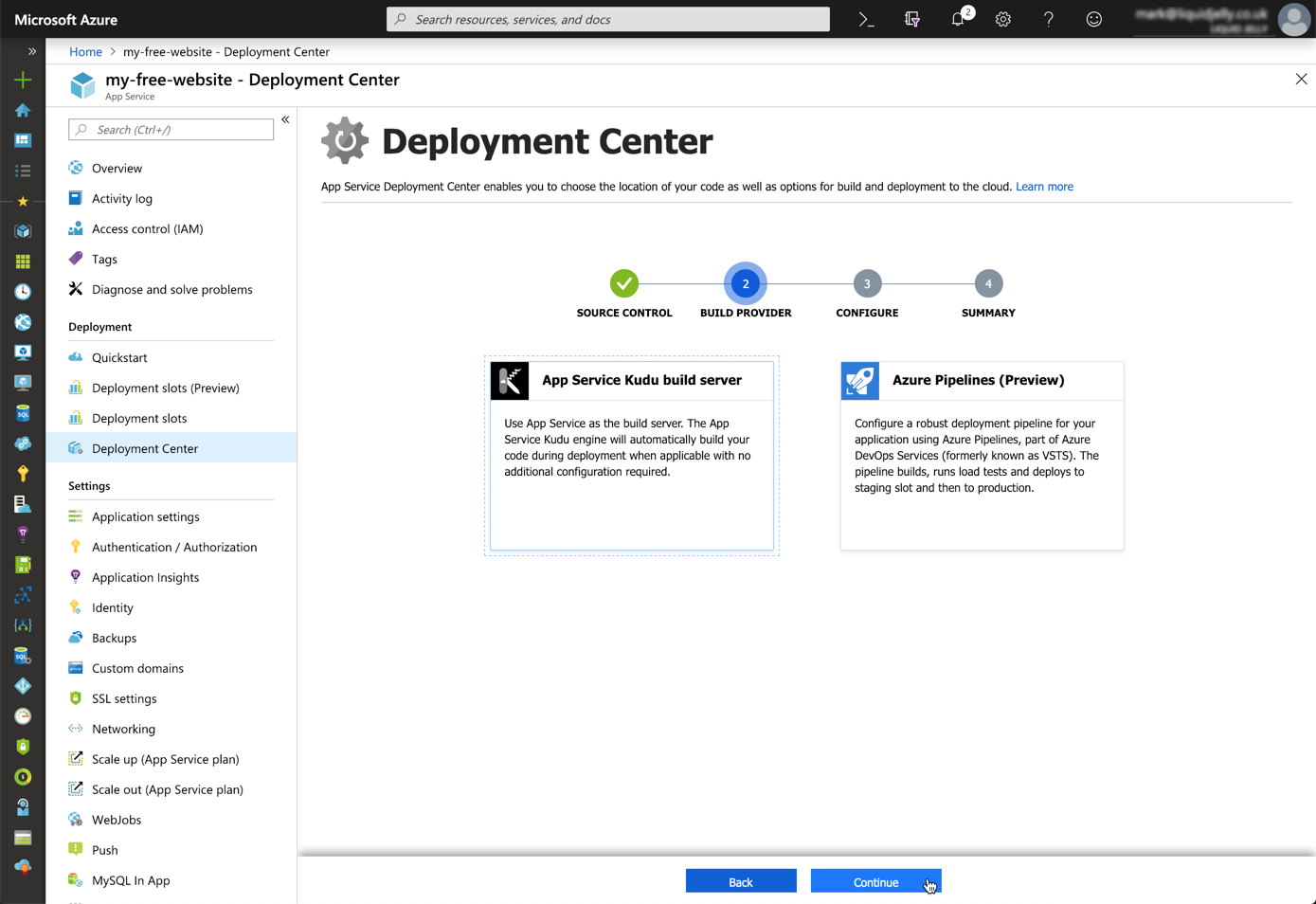
    • Step 2 (Build Provider), select App Service Kudu build server
    • Step 3 (Configure) select the suitable Organisation, Repository and Branch names.
    • Step 4 (Summary), click Continue and the deployment will start.
    Toast notifications during deployment
    • Once complete a message will be displayed.
    Status update after deployment
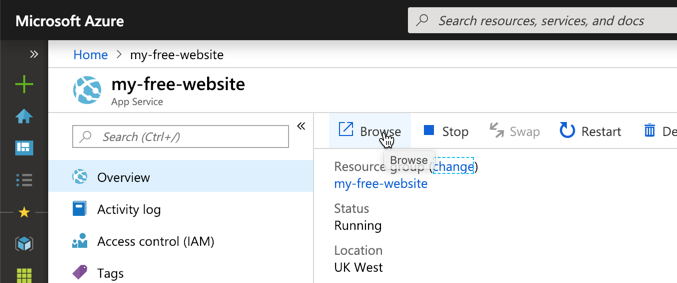
    • The website can be access by typing the URL, or from the resource home page Browse button.

    Browse with the URL or the link

    Done!

    Hello free world!

    Summary

    In summary this approach is no-where near as easy as the steps in part-1. It’s not to say that this is difficult, just that GitHub pages is so simple. Most of the complexity for this site is in the creation of resource groups – and this can be confusing for beginners.

    Also, the evolution of the Azure Cloud is moving at such an incredibly fast pace, it can be intimidating or daunting for developers to step in. Fears of features being here-today and gone-tomorrow are quite real – although websites feel pretty safe.

    That said, free sites within an Azure website offer far more than just static website hosting. Within this same application you can also host an application with server-side code support (ASP.NET, PHP etc).

    Next up – Part 3 – Firebase

  • Free website hosting #1 – GitHub Pages

    Free website hosting #1 – GitHub Pages

    There are a number of ways to get free website hosting in a no-nonsense, no adverts way. In this series of posts I’m going to take a look at a few.

    I’m only considering systems that can offer hosting for static websites. No server side programming languages (PHP, Python or ASP.NET), just HTML, CSS and JavaScript.

    First up, is GitHub Pages

    Just edit, push, and your changes are live.

    – GitHub

    A lofty promise, is it that easy?

    Getting started

    Step 1: Login or create an account

    Firstly you will need a GitHub account. If you don’t already have one, you can join for free: https://github.com/join.

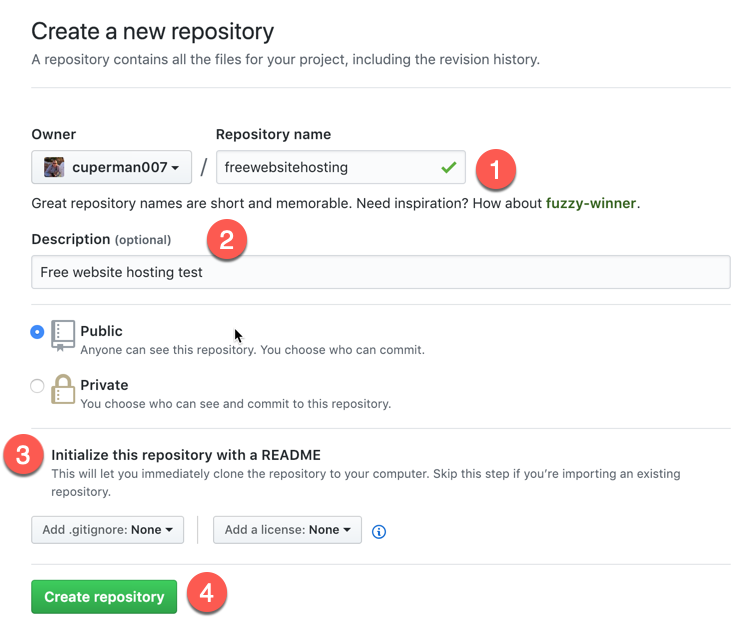
    Step 2: Create a new repository

    • Select Repositories and then New
    • Enter a Repository name and description
    • Select Inititialize this respository with a README (always document!!)
    • Click Create repository

    Step 2: Create an index file

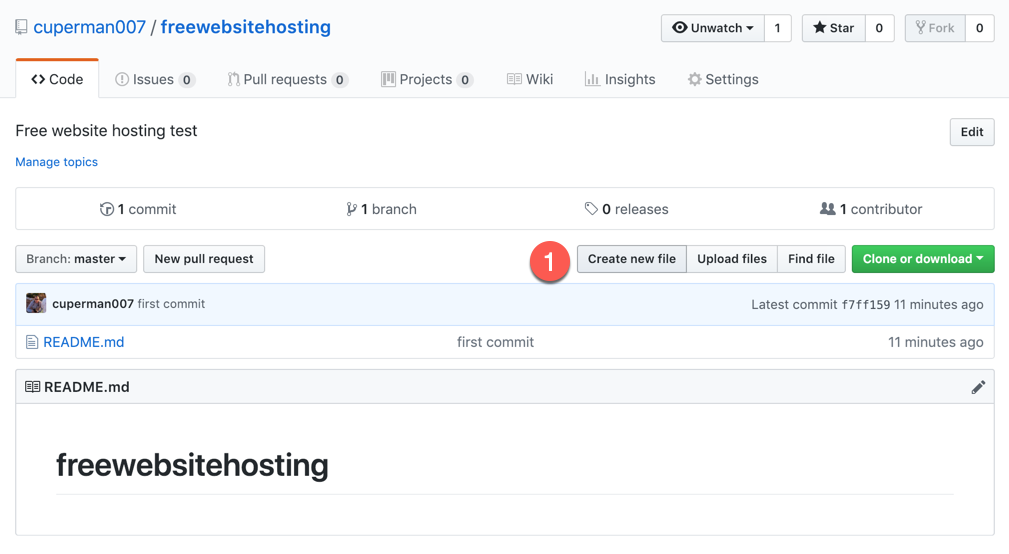
    • Click Create new file
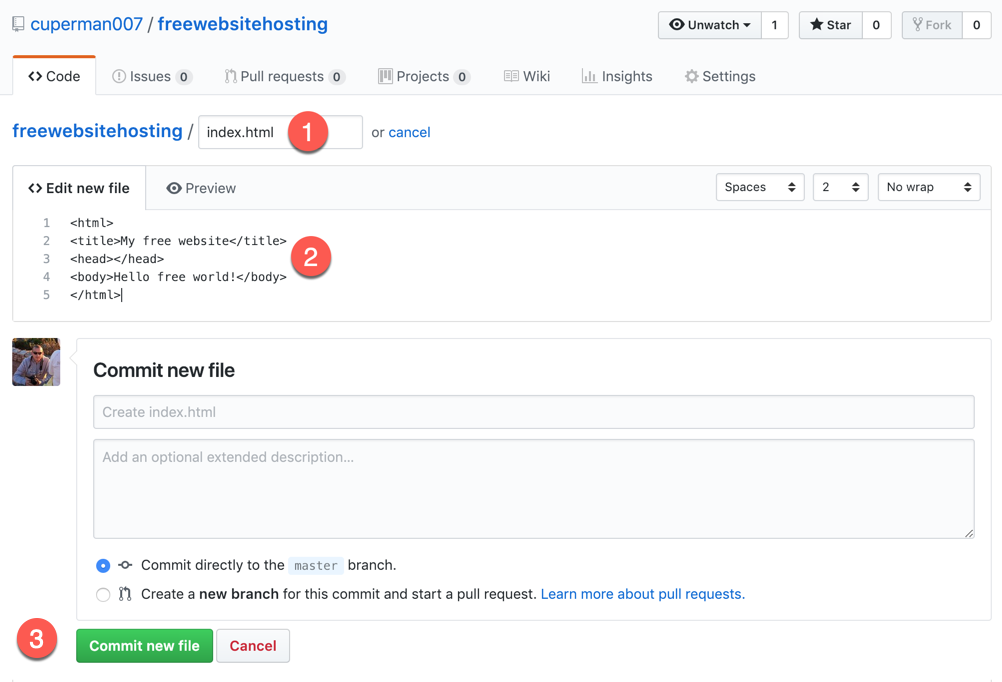
    • Enter index.html as a file name
    • Enter some simple HTML
    • Click Commit new file

    Step 3: Change settings

    • Select Settings
    • Scroll down to GitHub pages section
    • Select master branch and click Save
    • When the page refreshes scroll down and the website URL will be displayed
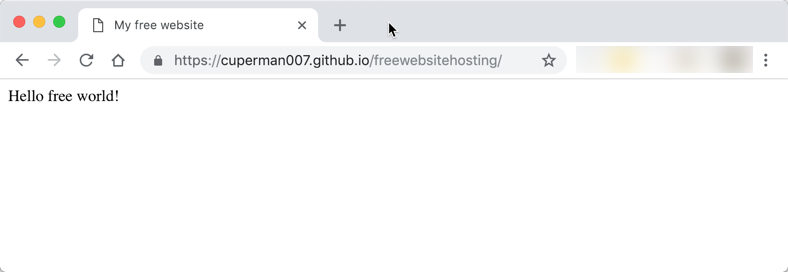
    • Just click the link to open your free website

    Summary

    In summary this is a very straight-forward way of creating a static website. A static website can contain web pages, CSS files, images and JavaScript (including calling dynamic services). A static site cannot contain any code that needs to be processed by a web server (e.g. PHP, ASP, Python etc).

    Static sites can be very simple, or very complex, and there are a number of great quality site generators that can be used in conjunction with GitHub Pages, for example Jekyll or MkDocs.

    GitHub pages also supports dynamic mapping of a custom domain name without charge.

    Next up – Part 2 – Azure Web Apps

  • Working around Selenium

    Working around Selenium

    After you’ve used selenium for a while, you’ll be familiar with some of the problems.

    Yep, WaitForElement doesn’t exactly cover itself in glory. It is possible to work round this a bit using a static helper for retries. Something like this;

        public static void MyNavigateMethod(this IWebDriver driver, int retryCounter = 0)
        {
            try
            {
                driver.DoSomething();
    
                // select the "Return to third party checkbox
                driver.WaitForWebElement(By.Id("myElement")).Click();
            }
            catch (Exception ex)
            {
                if (retryCounter <= 5)
                {
                    // retry this again
                    retryCounter++;
                    Trace.WriteLine(string.Format(" - exception occurred: '{1}', retrying: {0}", retryCounter, ex.GetType().ToString()));
                    Thread.Sleep(retryCounter * retrySleep);
                    driver.MyNavigateMethod(retryCounter: retryCounter);
                }
                else
                {
                    Trace.Write(ex);
                    throw;
                }
            }
        }

    Here we have passed an optional retryCounter into the method, and then within the exception iterated this counter and get the method to call itself.

  • Collect performance data from remote servers

    Collect performance data from remote servers

    To collect performance data from remote servers, when running a load test for example, use the following PowerShell script:

    clear
    $testId = "doodle"
    $durationSeconds = 20
    $threadsPerAgent = 5
    $client = ""
    $counterList = @(
    ".NET CLR Exceptions()# of Exceps Thrown / sec",
    ".NET CLR Memory()# Total committed Bytes",
    "\ASP.NET\Application Restarts",
    "\ASP.NET\Request Wait Time",
    "\ASP.NET\Requests Queued",
    "\ASP.NET Applications()\Requests/Sec",
    "\Web Service()\Current Connections",
    "\Web Service()\Get Requests/sec",
    "\Web Service()\Post Requests/sec",
    "\LogicalDisk()\Avg. Disk sec/Read",
    "\LogicalDisk()\Avg. Disk sec/Write",
    "\LogicalDisk()\Disk Transfers/sec",
    "\LogicalDisk(C:)\% Free Space",
    "\LogicalDisk()\Avg. Disk Queue Length",
    "\Memory\Available MBytes",
    "\Memory\Pages/sec",
    "\Processor()\% Processor Time",
    "\System\Processor Queue Length",
    "\Network Interface()\Bytes Received/sec",
    "\Network Interface()\Bytes Sent/sec",
    "\SQLServer:Buffer Manager\Buffer cache hit ratio",
    "\SQLServer:Buffer Manager\Page life expectancy",
    "\SQLServer:Locks()\Number of Deadlocks/sec",
    "\SQLServer:Locks()\Lock Waits/sec",
    "\SQLServer:Databases()\Transactions/sec"
    )
    $computers = "SERVERNAME1","SERVERNAME2","SERVERNAME3"
    Get-Counter -counter $counterList -ComputerName $computers -MaxSamples 308 -SampleInterval 5 | Export-Counter -Path C:\jmeter\results\$testId.blg -FileFormat BLG -Force

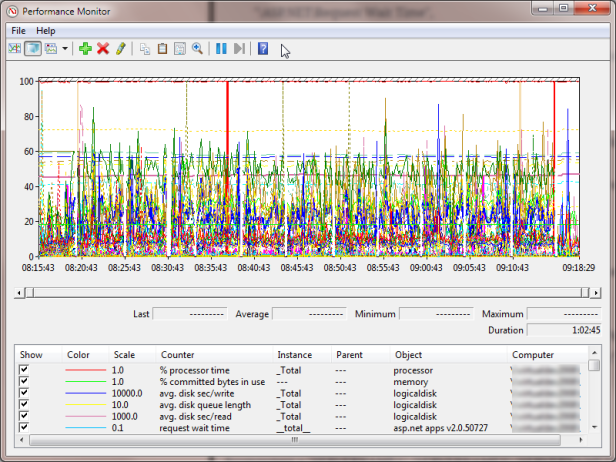
    The output will be a .blg file. Open this to see all your data.

    You can right-click | Save data as to export this information to CSV for easier use.

  • Goldilocks and the 3 reseller packages

    Goldilocks and the 3 reseller packages

    Goldilocks was walking through the wood one winters day when she came across a house with three computers. (Yes there was also fibre broadband installed – it’s a tech savvy wood – get over it!)

    The first computer was connected to Fasthosts. A solid offering she thought, back by over a decade of experience. But their lack of .NET4 support was apalling. Ergghh  – too salty!

    The second computer was connected to Cyberhostpro. It was cheap, but lacked finesse. It  took too much time to set up and manage. Ewww – too sweet.

    The last computer was connected to Heart Internet. Not the cheapest, but not the most expensive. .NET4 support and fully brandable. Mmmm – Just right.

    She migrated all her websites with ease, and got excellent customer support when she got stuck. She skipped happily outside and got eaten by a wolf. The end.

    I’ve found my migration to Heart Internet a wholly pleasant experience.  The online administration features are sophisticated. There are enough tools to do what I need, but not so many that it detriments user experience. There are also a smattering of cleverly configured scripts to cutout some of the heavy lifting on frequent tasks – such as setting Google Apps DNS.

    Ultimately – I Heart Internet. I’m happy.

    Oh and, if I win their fantastic Christmas Home Office Giveaway, I’ll be even happier 🙂

  • Arduino Uno 101: Using the SparkFun Inventor’s Kit (UK)

    Arduino Uno 101: Using the SparkFun Inventor’s Kit (UK)

    I’m an experienced programmer, but have only ever touched on electronics during A-levels and my degree course. New developer boards Arduino open up the world of micro-electronics to those with little or no experience. This is the start of my adventure:

    The kit I brought was the SparkFun Inventor’s Kit for Arduino with Retail Case resold by Relchron. I had read that it was possible to get a working example up and running in under an hour and found that was easily true.

    SparkFun Inventors Kit - Closed SparkFun Inventors Kit - Open

    The kit is neatly packaged, and all the items are well protected. The Arduino Board (in this case an Arduino Uno variant) felt very professional indeed. It was in a high quality box, printed inside and out, with a quality seal, detailed leaflet and geeky sticker pack. The extra effort and cost of all these small additions adds a air of quality to board. Confidence in this little fella is high!
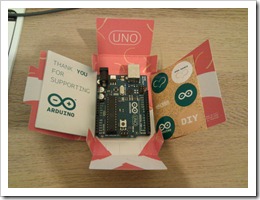
    Arduino Uno in Box Breadboard, Arduino Uno and Project Holder

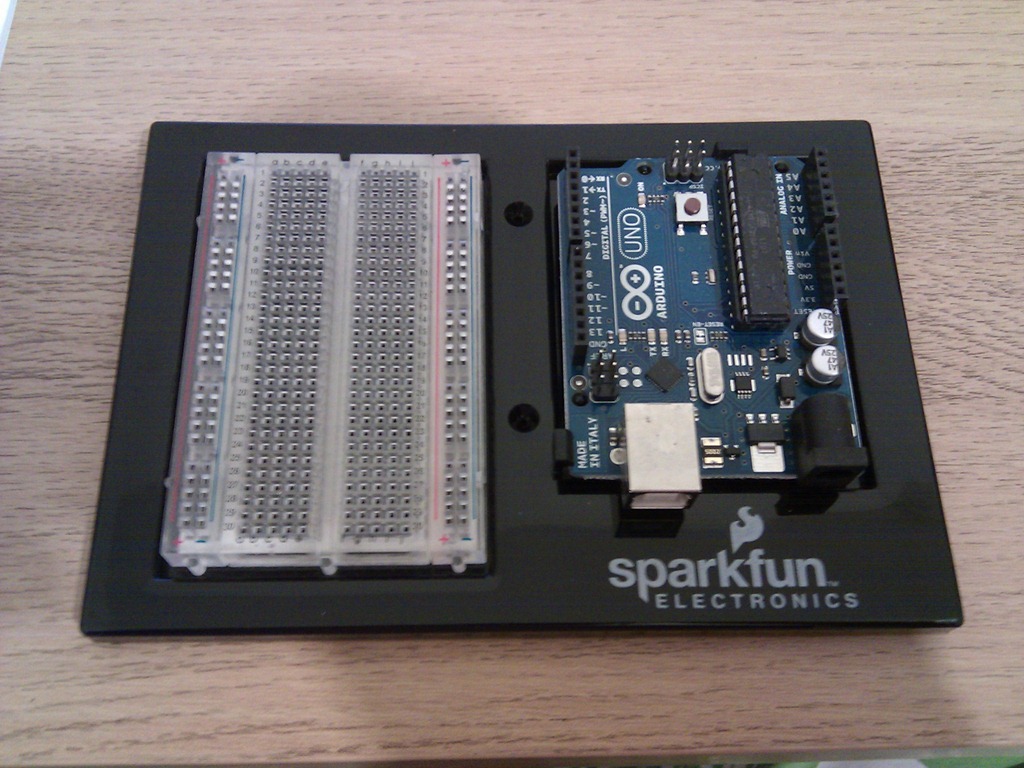
    The kit also comes with a mini Breadboard, project templates (that fit neatly over the breadboard telling you where to plug the components in) and neat holder that holds the breadboard and Uno together nicely.

    Development Software

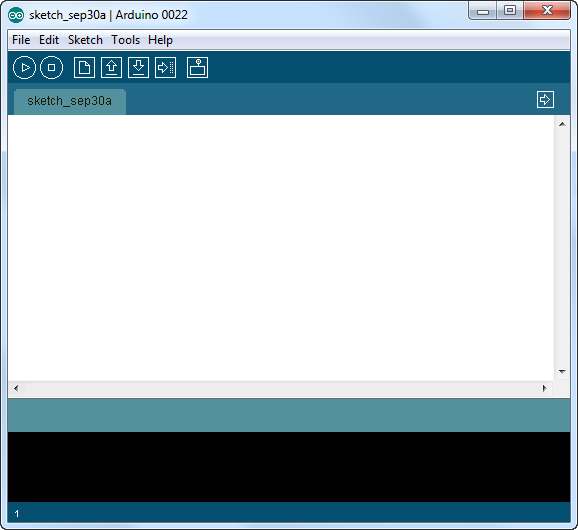
    The Arduino Development Software is downloaded and installed from http://www.arduino.cc. I’m running this on Windows 7 Ultimate 64Bit without any issues.
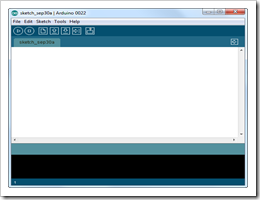
    SNAGHTMLaf57058  IMG_20110929_194717

    Connection

    The Arduino is connected via a USB cable (old style, massive end, no idea why they haven’t used micro usb!?). The lead is included in the pack. Once connected you have to jump through some hoops to install the drivers, but this is an issue with Win7, not the Uno. Details for doing this are in the included booklet.
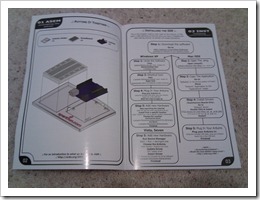
    IMG_20110929_194742 IMG_20110929_195223

    Once connected, the Uno will appear under a serial COM port in the Device Manager.

    Getting Started: 101

    The first ‘101’ project to build is a simple blinking LED. Yep I know this is no iPhone 5, but it’s a sensible starting point for a novice to learn the core features of the board.

    1. Using the provided pins, attach the CIRC-01 overlay on top of the breadboard.
    2. Build the circuit as described on the overlay.
    3. Connect the USB

    That’s it. If it’s all connected properly the LED will start blinking. This must be a default program (“Sketch”) that is already loaded into the board. But obviously a core part of this kit is to program it yourself. So;

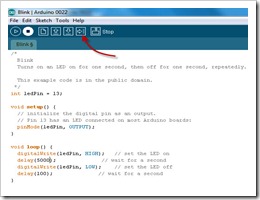
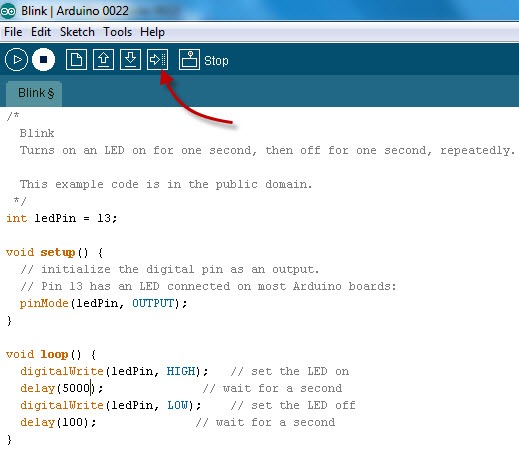
    1. In the Arduino Application, select File | Examples | 1. Basics | Blink. This will load a “blinking sketch” into the application.
    2. Modify the sketch, by changing some of the delays for example.
    3. Click the Upload button

    IMG_20110929_201200 IMG_20110929_195239

    The new Sketch will be uploaded to the Arduino and start immediately. With only a few tweaks to the Sketch you can setup a very simple morse code SOS blink:

    /*
    
      Morse SOS
    
      This example code is in the public domain.
    
     */
    
    int pinLed = 13;
    
    int dotDelay = 200;
    
    int dashDelay = 600;
    
    int letterPause = 1000;
    
    int loopPause = 2000;
    
    void setup() {
    
      // initialize the digital pin as an output.
    
      // Pin 13 has an LED connected on most Arduino boards:
    
      pinMode(pinLed, OUTPUT);
    
    }
    
    void loop() {
    
      // could be wrapped in a loop, but IMHO this reads better, so more maintainable.
    
      // S
    
      dot();
    
      dot();
    
      dot();
    
      cycleLed(letterPause);
    
      // O
    
      dash();
    
      dash();
    
      dash();
    
      cycleLed(letterPause);
    
      // S
    
      dot();
    
      dot();
    
      dot();
    
      cycleLed(loopPause);
    
    }
    
    void dot(){
    
      cycleLed(dotDelay);
    
    }
    
    void dash(){
    
      cycleLed(dashDelay);
    
    }
    
    void cycleLed(int cycleLedTime){
    
      digitalWrite(pinLed, HIGH);   // set the LED on
    
      delay(cycleLedTime);              // wait for a second
    
      digitalWrite(pinLed, LOW);    // set the LED off
    
      delay(cycleLedTime);
    
    }

    IMG_20110929_201147

    And we’re done. All in all, this took about 25-30 mins… so, what shall I build next?…hmmm…

  • Extract URL Information

    Extract URL Information

    To get information about the currently requested URL in ASP.NET use the Request.Url class. For example to extract the information from the URL http://www.example.com/myApp/myPage.aspx?myQs=14 the Request.Url class provides the following properties:

    Request.Url = "http://www.example.com/myApp/myPage.aspx?myQs=14"
    Request.Url.AbsolutePath: "/myApp/myPage.aspx"
    Request.Url.AbsoluteUri: "http://www.example.com/myApp/myPage.aspx?myQs=14"
    Request.Url.Authority: "www.example.com"
    Request.Url.DnsSafeHost: "www.example.com"
    Request.Url.Fragment: ""
    Request.Url.Host: "www.example.com"
    Request.Url.HostNameType: Dns
    Request.Url.IsAbsoluteUri: true
    Request.Url.IsDefaultPort: true
    Request.Url.IsFile: false
    Request.Url.IsLoopback: true
    Request.Url.IsUnc: false
    Request.Url.LocalPath: "/myApp/myPage.aspx"
    Request.Url.OriginalString: "http://www.example.com:80/myApp/myPage.aspx?myQs=14"
    Request.Url.PathAndQuery: "/myApp/myPage.aspx?myQs=14"
    Request.Url.Port: 80
    Request.Url.Query: "?myQs=14"
    Request.Url.Scheme: "http"
    Request.Url.Segments: {string[3]}
    Request.Url.UserEscaped: false
    Request.Url.UserInfo: ""
  • Entity Framework: StoreGeneratedPattern="Computed"

    Entity Framework: StoreGeneratedPattern="Computed"

    We recently had a problem where our fields with default values where not getting properly populated in the database during row creation. This can occur when the EDMX model is created in the designer and the default fields do not have their StoreGeneratedPattern property set to Computed or Identity.

    Easy enough to fix, simply open the model in the VS designer, select the field, open the properties view and make the required changes.

    However we have also seen a problem where these fields are still not getting set correctly even after this change has been applied. Looking into the EDMX model within an XML view we can see that in some cases the StoreGeneratedPattern=Computed property has been retained on the Entity, but removed from the EntitySet, for example:

    Entity: Product

    <entitytype name="Product">
    <key>
    <propertyref name="ProductId" />
    </key>
    <property name="ProductId" type="Int32" nullable="false"></property>
    <property name="ProductDescription" type="String" maxlength="30" fixedlength="false" unicode="false"></property>
    <property name="ProductType" type="String" maxlength="1" fixedlength="true" unicode="false"></property>
    <property name="EntityRowID" type="Guid" nullable="false" annotation:storegeneratedpattern="Computed"></property>
    <property name="EntityLastUpdated" type="DateTime" nullable="false" annotation:storegeneratedpattern="Computed"></property>
    <property name="EntityIsDeleted" type="Boolean" nullable="false" annotation:storegeneratedpattern="Computed"></property>
    </entitytype>
    

    EntitySet: Products

    The StoreGeneratedPattern has gone missing 😦

    <entitytype name="Products">
    <key>
    <propertyref name="ProductId" />
    </key>
    <property name="ProductId" nullable="false" type="Int32"></property>
    <property name="ProductDescription" type="String" unicode="false" fixedlength="false" maxlength="30"></property>
    <property name="ProductType" type="String" unicode="false" fixedlength="true" maxlength="1"></property>
    <property name="EntityRowID" nullable="false" type="Guid"></property>
    <property name="EntityLastUpdated" nullable="false" type="DateTime"></property>
    <property name="EntityIsDeleted" nullable="false" type="Boolean"></property>
    </entitytype>
    

    This has occurred on a lot of tables, and we don’t know how or why that has crept in. To fix this we have had to manually fix up the XML file for the EntitySets effected:

    <entitytype name="Products">
    <key>
    <propertyref name="ProductId" />
    </key>
    <property name="ProductId" nullable="false" type="Int32"></property>
    <property name="ProductDescription" type="String" unicode="false" fixedlength="false" maxlength="30"></property>
    <property name="ProductType" type="String" unicode="false" fixedlength="true" maxlength="1"></property>
    <property name="EntityRowID" nullable="false" type="Guid" storegeneratedpattern="Computed"></property>
    <property name="EntityLastUpdated" nullable="false" type="DateTime" storegeneratedpattern="Computed"></property>
    <property name="EntityIsDeleted" nullable="false" type="Boolean" storegeneratedpattern="Computed"></property>
    </entitytype>