Category: Technical

  • Rendering output using Razor

    Rendering output using Razor

    When rendering output from a razor template it is important to remember the distinction between

    @{ ...}  and @(...)

    Curly braces will cause the output to execute, whilst the regular parenthesis will cause the output to render.

    As an example that tripped me up during rendering of a ViewComponent in the CamperFinder demo, the following executes the output, but does not render it.

    <div>     
    @foreach (var vehicle in Model.Vehicles) {
      @await Component.InvokeAsync("VehicleSummary", vehicle);
    }
    </div>@

    The inner await block is executed within the scope of the loop, within {} braces.

    By adding parentheses around the await following renders the content as we want it.

    <div>     
    @foreach (var vehicle in Model.Vehicles) {
      @(await Component.InvokeAsync("VehicleSummary", vehicle));
    }
    </div>

    Kudos: https://stackoverflow.com/a/44835742/75594

  • Using media queries in razor page files

    Using media queries in razor page files

    When hardcoding a media query into an ASP.NET Razor page file, you need to use @@ instead of @ to ensure the query is rendered correctly.

    Kudos: https://stackoverflow.com/a/6873785/75594

  • Azure DevOps – Move a Git repo between projects

    Azure DevOps – Move a Git repo between projects

    There are many situations where you want to make a copy of a repository…

    • You’ve been working on a personal repo and want to share it with work
    • You’re contributing to an open source project and need to fork
    • You’ve been working on a repo that you want to hand-over to a customer

    It’s the last situation that I need to fulfill and the steps are as follows.

    In the source repo;

    1. Create a personal access token (don’t forget to copy it)
    2. Copy the source repo URL

    In the destination repo;

    1. Select Repos
    2. Select the drop down the repo list
    3. Select Import repository
    1. Clone URL = source repo URL
    2. Select the Requires authorization check-box
    3. Username = username of the personal access token created above
    4. Password = generated password of the personal access token created above
    5. Name = name of the destination repo (if different)
    6. Click import

    Once the process is complete you’ll receive an on-screen and email notification.

  • Azure DevOps – Multiple repos in a single project

    Azure DevOps – Multiple repos in a single project

    When you create a new DevOps project, you only get one Git repo. It is possible to create more repos within the project, but not immediately obvious how. There are a couple of options;

    Navigate to Repos, hit the drop down and select Manage repositories

    Or…

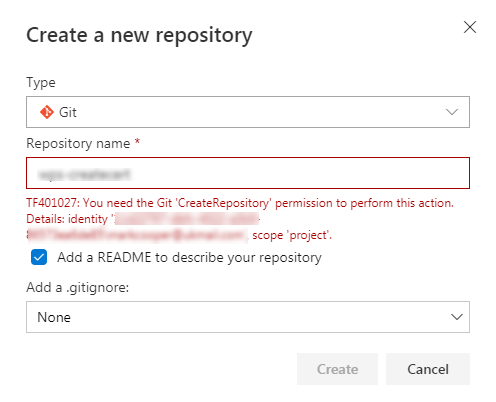
    Open the project and go to Project settings| Repositories | New Repository

    Permissions

    You will need CreateRepository permissions to complete this.

  • Free website hosting #4 – AWS

    Free website hosting #4 – AWS

    This is the final part of a four part series looking at free hosting from modern cloud providers:

    In this article we look at the offering from Amazon web services, and the static hosting capabilities of the S3 storage bucket.

    If this AWS S3 storage free? Well, mostly.

    As part of the AWS Free Usage Tier, you can get started with Amazon S3 for free. Upon sign-up, new AWS customers receive 5GB of Amazon S3 storage in the S3 Standard storage class, 20,000 GET Requests, 2,000 PUT Requests, and 15GB of Data Transfer Out each month for one year.

    https://aws.amazon.com/s3/pricing/

    Step 1 – login or create an AWS account

    If you have an AWS account then sign in to the console, otherwise sign up for the 12 month free trial.

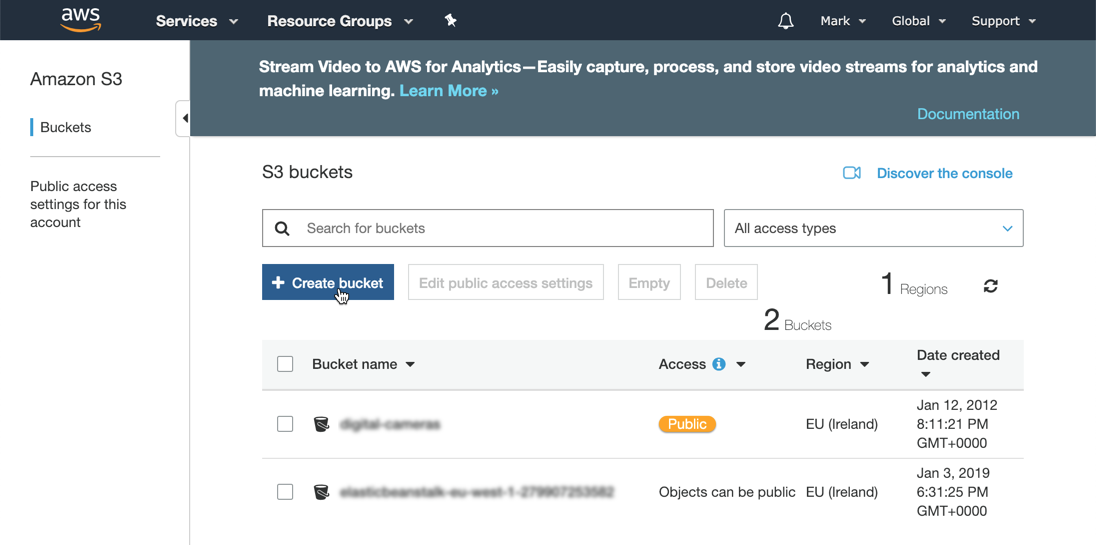
    Step 2 – create an S3 bucket

    • Enter a bucket name, select a region and copy settings from an existing bucket if needed.
    • Click Next through steps 2 and 3 and then Create bucket again on step 4 and the new storage bucket will be created.

    Step 3 – upload files

    Upload the standard index.html file using the onscreen picker and selecting the default options.

    • On the properties tab select Static website hosting and select the option Use this bucket to host a website, and enter index.html in the index document field. Click Save to complete the change.

    Step 4 – set permissions

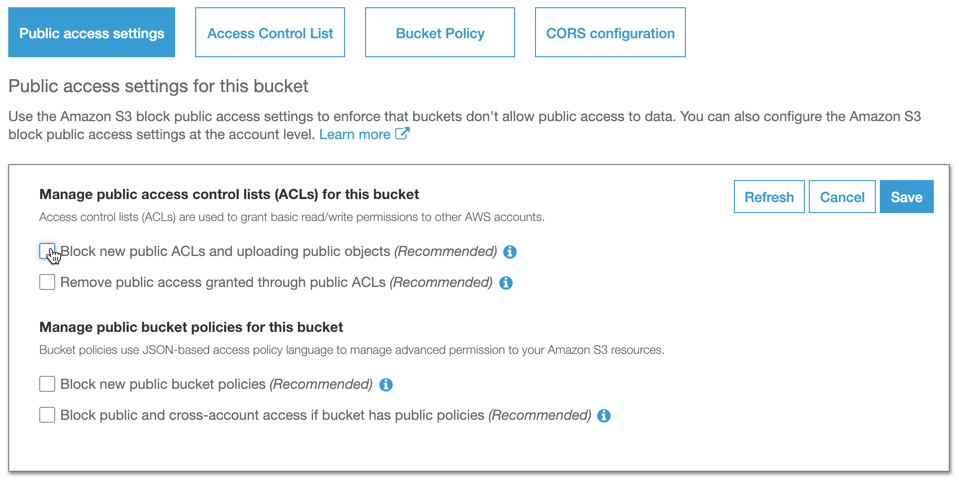
    On the permission tab remove the restrictions on public access and click Save to commit the changes.

    • On the bucket policy tab, enter the following policy to enable permission for unauthenticated users to access the files:

    {
    “Id”: “Policy1546543764975”,
    “Version”: “2012-10-17”,
    “Statement”: [
    {
    “Sid”: “Stmt1546543763921”,
    “Action”: [
    “s3:GetObject”
    ],
    “Effect”: “Allow”,
    “Resource”: “arn:aws:s3:::my-free-website/“, “Principal”: “
    }
    ]
    }

    • This policy syntax can be also be generated using the policy generator tool
    • Once the permission has been granted, a notification will be displayed
    • From the static hosting page click the link to view the hosted website

    Summary

    A simple a straight forward process, bit again no native source control from Git. AWS does offer CodeDeploy but you need to setup up resource groups, security groups and a Lamba pipeline to get this working. Compared to other offerings this feels like a big effort.

  • Free website hosting #3 – Firebase

    Free website hosting #3 – Firebase

    This is part 3 of a series detailing the steps required to obtain free hosting on a modern cloud provider.

    In this part we take a look at Google Firebase. The documentation for this process is already really good, so this document will just be a summary.

    Step 1 – Login or create a Google account

    If you have a Google login, you can use it, or create a new one.

    Step 2 – create a project

    Within Firebase all related resources are contained within a project, so this must be created first.

    • Click Add project
    • Enter a unique Project name – this must be unique to your login. If the name is also unique within Firebase the Project ID will match the Project name, otherwise a suffix will be automatically added.
    • Check the boxes, and click Create project

    Step 3 – create a hosting resource

    Within the application a hosting resource is created.

    • Within the project select Hosting | Get started
    Roll your sleeves up… you need to open a console…

    This is where you need to roll your sleeves up. Your Firebase web application is mostly controlled via a Command Line Interface (CLI). You need to use NPM, which which should be automatically installed with Node.js

    Open a command line (windows) or terminal window (mac) in a suitable folder and use the CLI to create your Firebase hosting resource. Copy the install command from the browser and paste it into the CLI and hit Enter.

    NOTE: you will need Admin or sudo permissions to complete this.

    • npm install -g firebase-tools
    • firebase login
    • firebase init
    • firebase deploy

    You should now have a working demo website.

    The default webpage that is created during firebase init

    To make sure this is the correct content, you must now copy all the files and folders from your website into the public folder and run firebase deploy again.

    Hello free world!

    Summary

    IMHO Firebase has the best documentation that I’ve seen, and if you are comfortable with the CLI then it’s all pretty straight forward. However, if you are not at home in the terminal, then the CLI will be very intimidating to most non-developers.

    There isn’t yet a built in story for deploying from source either, which I think is a mistake on the part of the Google team. Git is so ubiquitous now that this should be available by default. Deploying via a repository also enforces development “best-practices” such as source control and CI.

    There is an excellent Firecast on how to deploy via Travis CI, but adding another dependency into the mix doesn’t sit well with me – it is adding unnecessary sprawl and complexity.

  • Free website hosting #2 – Azure Web Apps

    Free website hosting #2 – Azure Web Apps

    In the second part of this series we take a look at the first free web hosting option in Azure – Wep Apps.
    Azure comes with a free hosting tier. This is limited to 1GB and on shared infrastructure, so won’t suit a website needing high performance, however for free hosting this is to be expected.

    In this example we’re going to use the same GitHub repo and webpage created in part-1.

    Step 1: Create an account or login

    If you have an Azure account you can login to the Azure portal using your Microsoft login credentials.

    TIP: Learn more about accounts, subscriptions and logins.

    To create a free account navigate to https://azure.microsoft.com/en-gb/free/ click the Start for free button, and follow the instructions.

    Step 2: Create a web app

    Once you have logged into the portal;

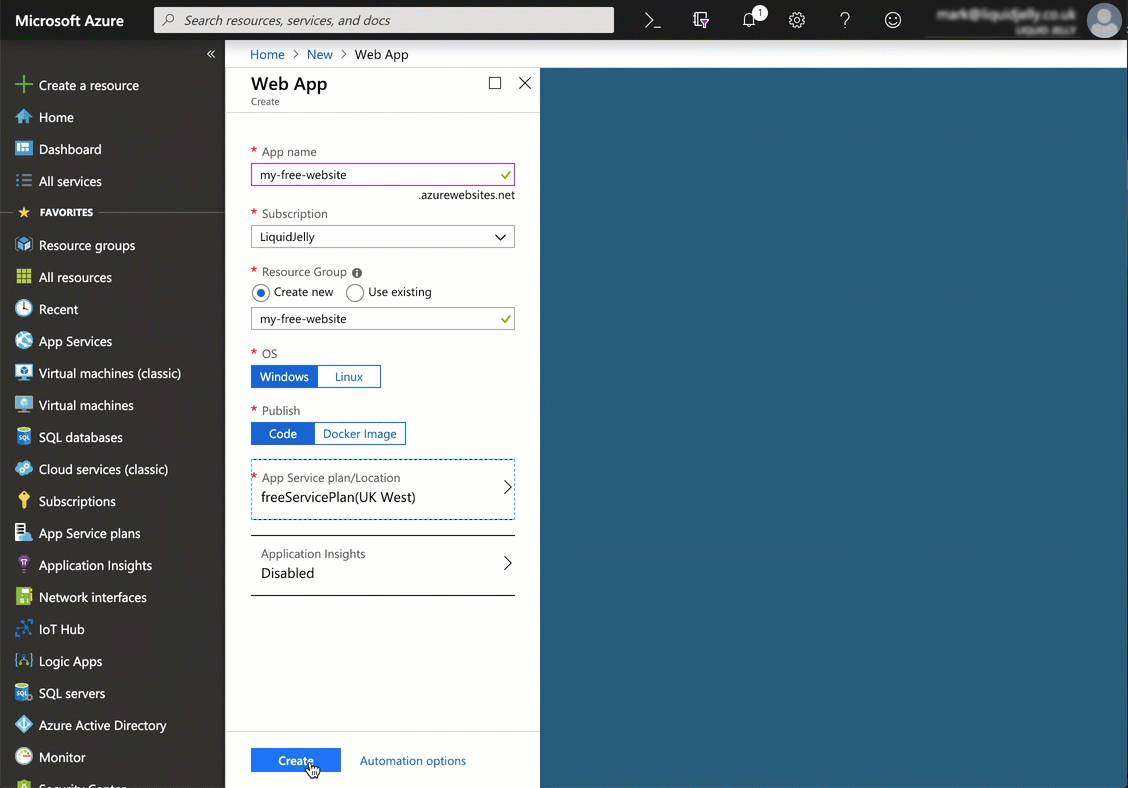
    1. Select Create a resource | Web | Web App
    2. Complete the fields
      1. App name must be unique within the AzureWebsites domain, not just your account. A red message will appear if this is not correct.
      2. Choose the subscription where you want the resource saved.
      3. You are going to host a static website, so you can use Windows or Linux
      4. Publish should be set to Code

    Step 2b: Create a free service plan

    This is the important bit: the App service plan must be F1 (free).

    1. Select App Service plan | Create new
    2. Enter an App Service plan name and select a suitable location.
    3. Click Pricing tier, then under the Dev/Test tab select F1 then click Apply
    4. Click OK to create the new App Service plan.
    5. Click Create to create the web app

    To find your new website, click on Home. The website should be at the top of your recent resources list.

    Step 3: Add auto-deployment from Git

    This step will work from any Git repository, not just GitHub. However GitHub and Azure are both managed by Microsoft, so this feels like a sensible choice.

    • Open the website blade then select Deployment Center
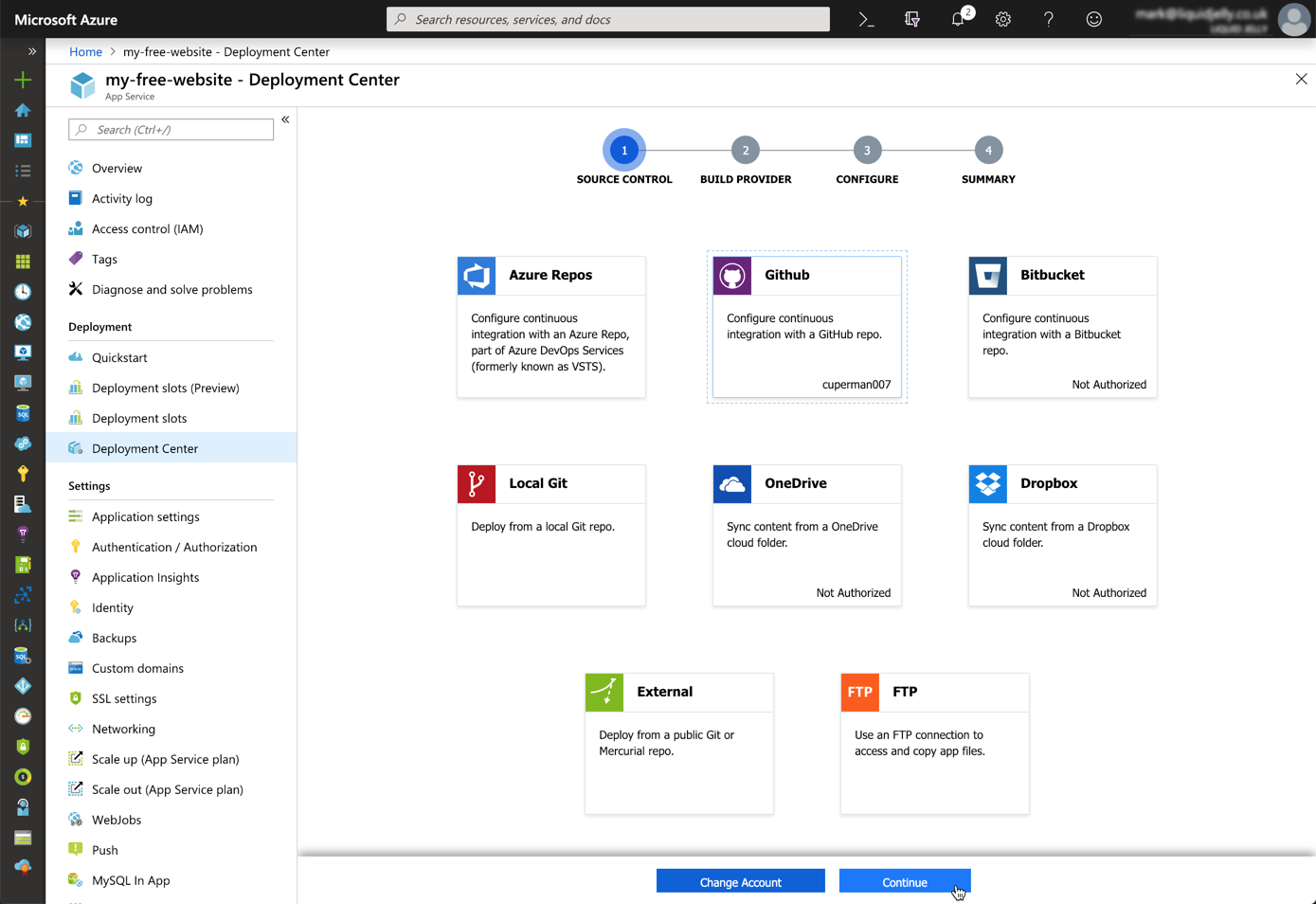
    • On the first page (1 – Source Control) a list of available source options are available. Subsequent steps will reflect the choice made here. We’ll use the same source code from part 1, so select GitHub. You will need to authorise your subscription to access GitHub if you have not already done so.
    • Click Continue
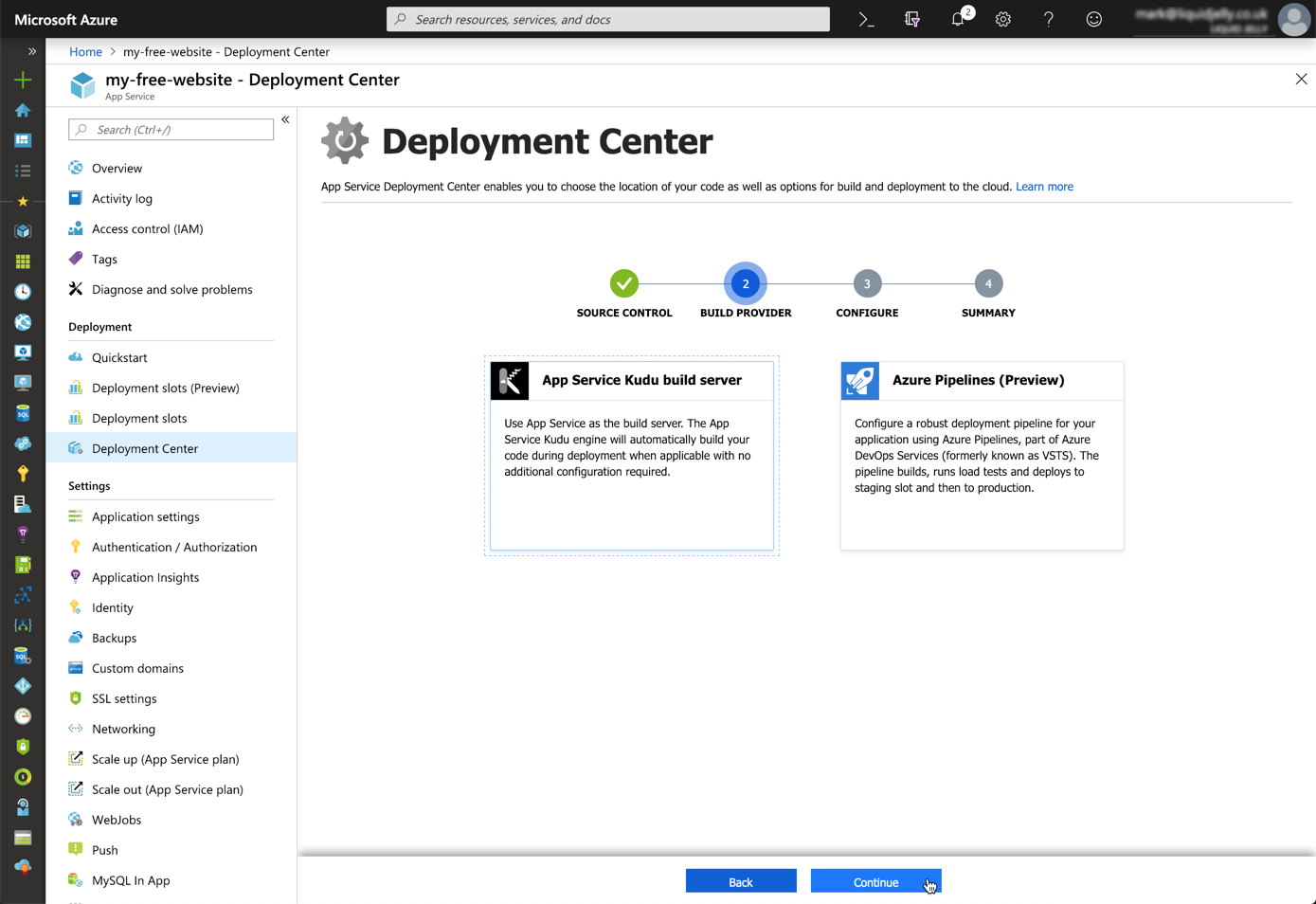
    • Step 2 (Build Provider), select App Service Kudu build server
    • Step 3 (Configure) select the suitable Organisation, Repository and Branch names.
    • Step 4 (Summary), click Continue and the deployment will start.
    Toast notifications during deployment
    • Once complete a message will be displayed.
    Status update after deployment
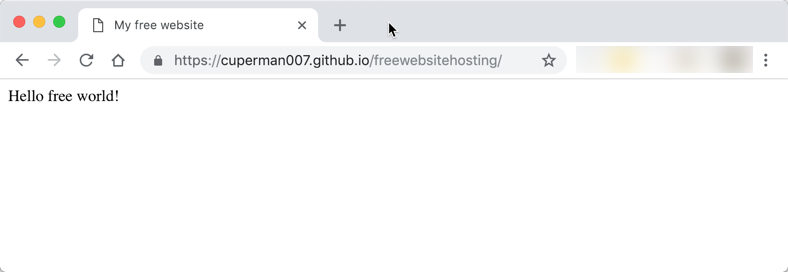
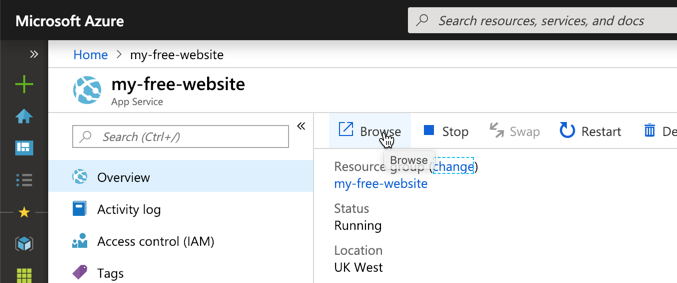
    • The website can be access by typing the URL, or from the resource home page Browse button.

    Browse with the URL or the link

    Done!

    Hello free world!

    Summary

    In summary this approach is no-where near as easy as the steps in part-1. It’s not to say that this is difficult, just that GitHub pages is so simple. Most of the complexity for this site is in the creation of resource groups – and this can be confusing for beginners.

    Also, the evolution of the Azure Cloud is moving at such an incredibly fast pace, it can be intimidating or daunting for developers to step in. Fears of features being here-today and gone-tomorrow are quite real – although websites feel pretty safe.

    That said, free sites within an Azure website offer far more than just static website hosting. Within this same application you can also host an application with server-side code support (ASP.NET, PHP etc).

    Next up – Part 3 – Firebase

  • Free website hosting #1 – GitHub Pages

    Free website hosting #1 – GitHub Pages

    There are a number of ways to get free website hosting in a no-nonsense, no adverts way. In this series of posts I’m going to take a look at a few.

    I’m only considering systems that can offer hosting for static websites. No server side programming languages (PHP, Python or ASP.NET), just HTML, CSS and JavaScript.

    First up, is GitHub Pages

    Just edit, push, and your changes are live.

    – GitHub

    A lofty promise, is it that easy?

    Getting started

    Step 1: Login or create an account

    Firstly you will need a GitHub account. If you don’t already have one, you can join for free: https://github.com/join.

    Step 2: Create a new repository

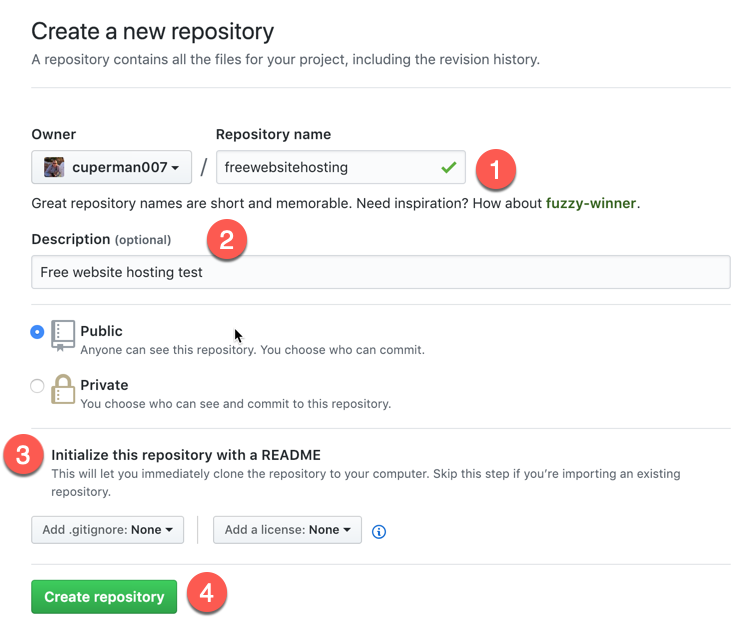
    • Select Repositories and then New
    • Enter a Repository name and description
    • Select Inititialize this respository with a README (always document!!)
    • Click Create repository

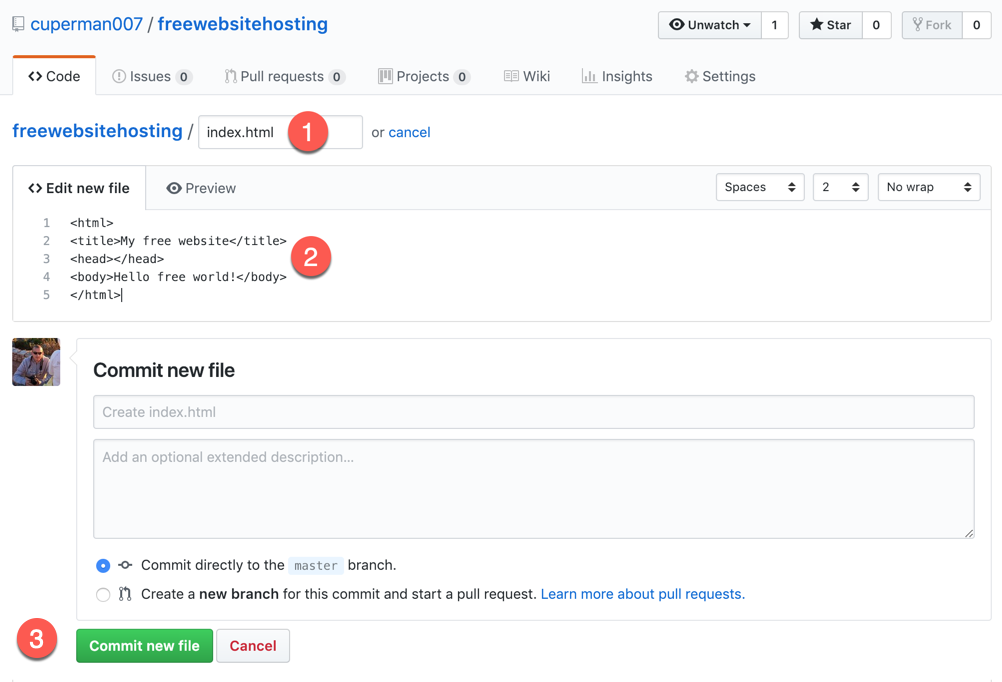
    Step 2: Create an index file

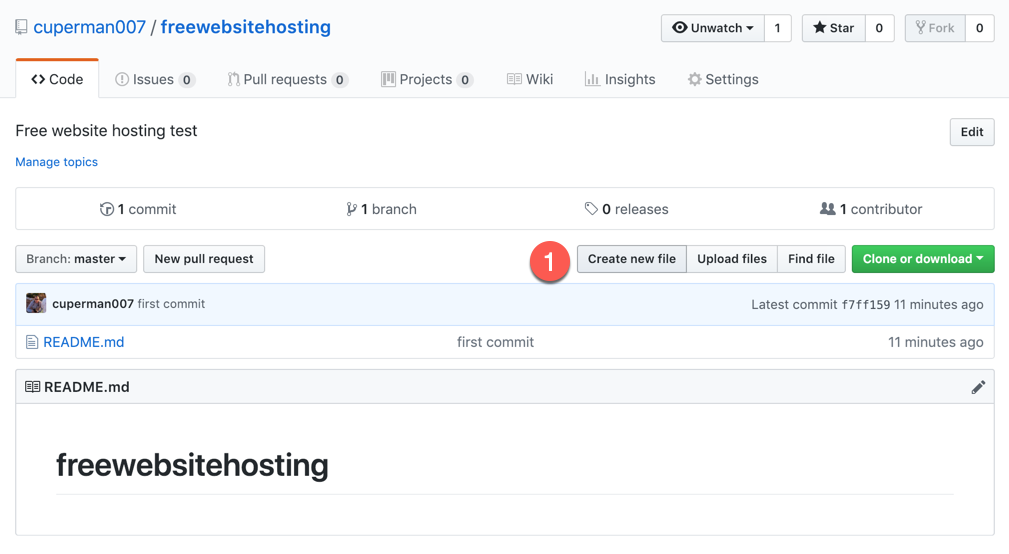
    • Click Create new file
    • Enter index.html as a file name
    • Enter some simple HTML
    • Click Commit new file

    Step 3: Change settings

    • Select Settings
    • Scroll down to GitHub pages section
    • Select master branch and click Save
    • When the page refreshes scroll down and the website URL will be displayed
    • Just click the link to open your free website

    Summary

    In summary this is a very straight-forward way of creating a static website. A static website can contain web pages, CSS files, images and JavaScript (including calling dynamic services). A static site cannot contain any code that needs to be processed by a web server (e.g. PHP, ASP, Python etc).

    Static sites can be very simple, or very complex, and there are a number of great quality site generators that can be used in conjunction with GitHub Pages, for example Jekyll or MkDocs.

    GitHub pages also supports dynamic mapping of a custom domain name without charge.

    Next up – Part 2 – Azure Web Apps

  • Be a specialist

    Be a specialist

    In his Keynote address at //Build2018 Scott Guthrie said that the pace of change can make adoption of cloud technologies intimidating and difficult.

    Microsoft are going a long way to fix this by increasing the quality of the documentation, creating free training content on Pluralsight and publishing comprehensive training plans on the learning website.

    It is no longer realistic to be an expert in all areas of Azure, or AWS or Google Cloud. It’s OK to be a specialist.

    Pick one or two areas that interest you and deep dive. During that deep dive you will likely learn supplementary information about a whole load of other topics and areas. Remember you don’t need to know them all. My particular interests lie with websites and IoT.

    Luckily there is a whole lot to learn in both those areas. Dive, dive, dive!

  • Adding typescript to ASP.NET 2 WebForms project

    Adding typescript to ASP.NET 2 WebForms project

    If you are burdened with the technical debt of an old ASP.NET 2 Webforms project, then the chances are that you might not have had the chance to stay up-to-date with JavaScript revolution. A lot has changed with JavaScript in the past few years, and keeping up is a significant effort. So what should you do?

    tl;dr

    There is no silver bullet. You’ll need to take some time out to update your skills if you want to make use of the new standards and frameworks but it is possible to start incrementally updating an older application without doing a complete rewrite.

    So what do you need to understand?…

    JavaScript Standards

    If you do not know what ES5 or ES6 are – read this blog post first.

    When you first created your ASP.NET 2 application you would have been targetting a JavaScript standard known as ES5 (you might not have even known that you were using JavaScript at the time, but it is baked into the WebForms framework for handling postbacks).

    Important point: Different browsers support different versions of the JavaScript standards. Generally speaking ES5 is considered as supported everywhere.

    If you want to check if a JS standard  is supported in a specific browser then use the compatibility tables, for example:

    If you need to use a specific feature the you can make use of the website caniuse.com, for example:

    So we now know that there are different versions of JavaScript and the more recent versions are “better” than the older versions, but also that the newer versions aren’t supported across the board.

    This means that you can’t use the later versions if you still have users on older browsers. We already know that you are supporting an ASP.NET 2 application, which means that

    • It is a legacy application, so there is a fair chance that means that it is still used by people on older browsers that don’t support ES6+.
    • You are user driven and can’t force them to upgrade – perhaps they are corporate clients and pretty much dicate the terms.

    This is where you need to learn about compilation and transpilation…

    Compilers and Transpilers

    Transpilers (or source-to-source compilers) take code in one language and convert it to another language. Fortunately for us there are plenty of compilers that can convert scripts between different versions of JavaScript. You are likely to have heard of the following:

    Transpilers

    • Babel – a transpiler best known for its ability to turn ES6 into ES5
    • Webpack – a JS transpiler and CSS transpiler (LESS/SASS) and minifier

    Which one should you use? A very opinionated area and seeing as we are developing ASP.NET then my opinion is to use the hidden third option – Visual Studio 2017. This will also transpile, bundle and minify CSS and JS. Unless you have need to use an alternative you may as well use the features within VS 2017 to keep life simple.

    Supersets

    • TypeScript – a strongly typed superset of JavaScript that compiles to JavaScript.
    • CoffeeScript – a superset of JavaScript that compiles into JavaScript

    Which one should you use? This is a very opinionated area and my opinion is that TypeScript is the way to go based on the following.

    • TypeScript is managed by Microsoft (you are using ASP.NET WebForms so this should sit well with your current tech-stack)
    • TypeScript is at the heart of Angular, so it is also embraced by Google and their tech-stack
    • TypeScript is baked in to Visual Studio and VS Code – you don’t need to use Babel
    • TypeScript is a compiler and a type checker (which Babel is not)
    • Type checking capabilities are very important for large code bases
    • TypeScript will compile to ES3, ES5, ES6, ES2016, ES2017 or ESNext

    For more information on transpilation read this blog post.

    Command line

    Pretty much all modern frameworks and libraries are used via the command line (usually referred to as CLI – Command Line Interface).

    It is a big shift in the way you normally work, but it is powerful and quick. By building CLI tooling developers are able to iterate (and deal with cross platform) much faster than if they had to supporing complex UI’s and multiple IDE’s.

    Accept it. Learn it. Love it.

    Upgrade steps

    Depending on the exact details and structure of your application your steps might vary. The following is a guide to the steps that might be involved.

    Update Visual Studio

    Whilst I love VS Code for simple web apps, testing and proof of concept, Visual Studio is still my go-to editor for WebForms.

    To get the latest support for TypeScript you will need to use the latest version of Visual Studio.

    Update the solution

    • Make sure you are starting from a firm foundation – build and check-in your code without any changes using your current IDE. This is your fallback if something goes wrong.
    • Open the project in VS2017. Certain files will be updated (solution, project etc), so you’ll need to build and test again. Do this before making any further changes.

    Install Web Essentials

    If you don’t already have it, install the Web Essentials 2017 extensions into Visual Studio. This extension will deal with the JS tranpilation that you need.

    For more information see the Web Essentials website.

    Install Typescript 2.6 SDK

    There are a few tricks getting Typescript checked / installed / updated.

    Useful commands:

    • tsc -v – what version of the TypeScript compiler is running
    • where tsc – where are the installed versions of the TypeScript compiler
    • npm install -g typescript – install / update TypeScript as a node module
    • npm upgrade -g typescript – install / update TypeScript as a node module

    TypeScript 2.6 and VS2017 will automatically infer the shared types between files – it is no longer necessary to use triple-slashreferences for types.

    See https://docs.microsoft.com/en-us/visualstudio/ide/javascript-intellisense#Auto

    After transpilation you will want to bundle your files. These can be done with a bundleconfig.json file.

    NOTE: JS files are bundled in the order they are listed, so add base classes first.

    Build, test & commit

    At this point follow your usual process to build, test and commit your changes. This is a good point to fall back to if the something goes wrong in the subsequent steps.