Category: Links

  • Rendering output using Razor

    Rendering output using Razor

    When rendering output from a razor template it is important to remember the distinction between

    @{ ...}  and @(...)

    Curly braces will cause the output to execute, whilst the regular parenthesis will cause the output to render.

    As an example that tripped me up during rendering of a ViewComponent in the CamperFinder demo, the following executes the output, but does not render it.

    <div>     
    @foreach (var vehicle in Model.Vehicles) {
      @await Component.InvokeAsync("VehicleSummary", vehicle);
    }
    </div>@

    The inner await block is executed within the scope of the loop, within {} braces.

    By adding parentheses around the await following renders the content as we want it.

    <div>     
    @foreach (var vehicle in Model.Vehicles) {
      @(await Component.InvokeAsync("VehicleSummary", vehicle));
    }
    </div>

    Kudos: https://stackoverflow.com/a/44835742/75594

  • Using media queries in razor page files

    Using media queries in razor page files

    When hardcoding a media query into an ASP.NET Razor page file, you need to use @@ instead of @ to ensure the query is rendered correctly.

    Kudos: https://stackoverflow.com/a/6873785/75594

  • Adding SQL MIME type to IIS 7

    Adding SQL MIME type to IIS 7

    To download a SQL file from an IIS hosted website the website needs to know how to handle the file.

    In general terms a SQL file is plain text, so the respective MIME type would be text/plain

    This can be added to IIS manually using the MIME types editor. Or for a more reliable approach add the MIME type to your application web.config file – this will make the settings portable so they get deployed with the application (and will work on any instance of IIS), for example;

    
    <configuration>
    
        <system.webServer>
    
            <staticContent>
    
                <mimeMap fileExtension=".sql" mimeType="text/plain" />
    
         </staticContent>
    
        </system.webServer>
    
    </configuration>
    
    
  • Arduino Uno 101: Using the SparkFun Inventor’s Kit (UK)

    Arduino Uno 101: Using the SparkFun Inventor’s Kit (UK)

    I’m an experienced programmer, but have only ever touched on electronics during A-levels and my degree course. New developer boards Arduino open up the world of micro-electronics to those with little or no experience. This is the start of my adventure:

    The kit I brought was the SparkFun Inventor’s Kit for Arduino with Retail Case resold by Relchron. I had read that it was possible to get a working example up and running in under an hour and found that was easily true.

    SparkFun Inventors Kit - Closed SparkFun Inventors Kit - Open

    The kit is neatly packaged, and all the items are well protected. The Arduino Board (in this case an Arduino Uno variant) felt very professional indeed. It was in a high quality box, printed inside and out, with a quality seal, detailed leaflet and geeky sticker pack. The extra effort and cost of all these small additions adds a air of quality to board. Confidence in this little fella is high!
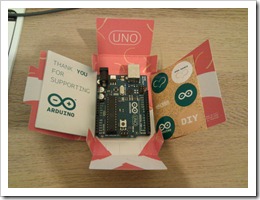
    Arduino Uno in Box Breadboard, Arduino Uno and Project Holder

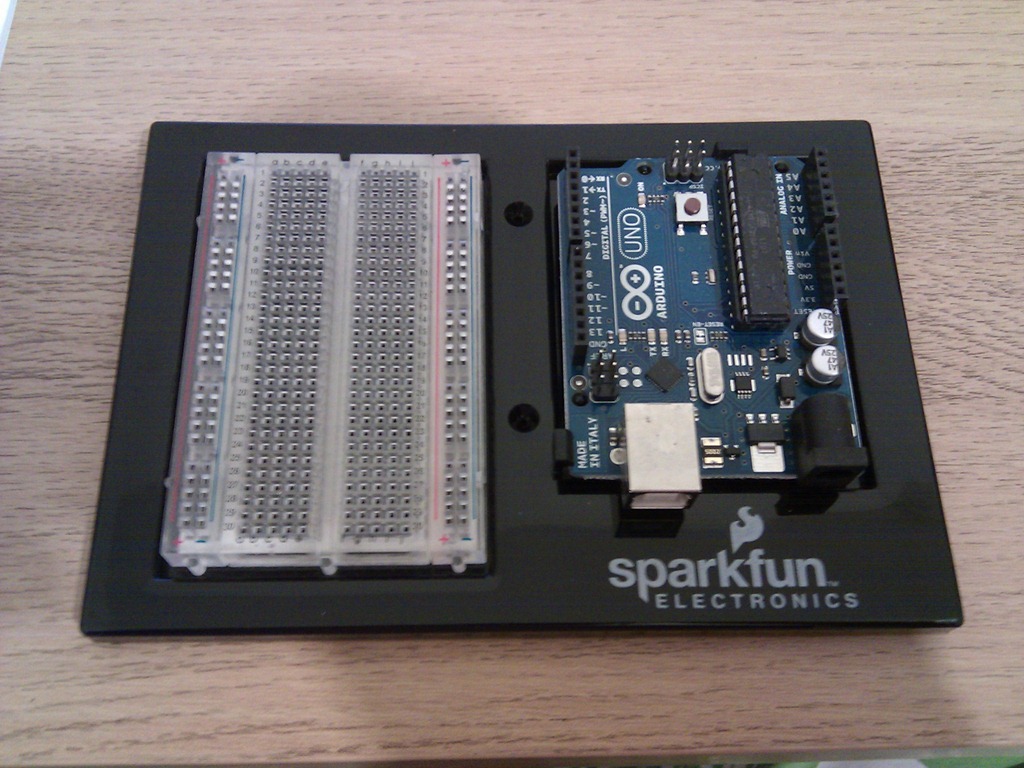
    The kit also comes with a mini Breadboard, project templates (that fit neatly over the breadboard telling you where to plug the components in) and neat holder that holds the breadboard and Uno together nicely.

    Development Software

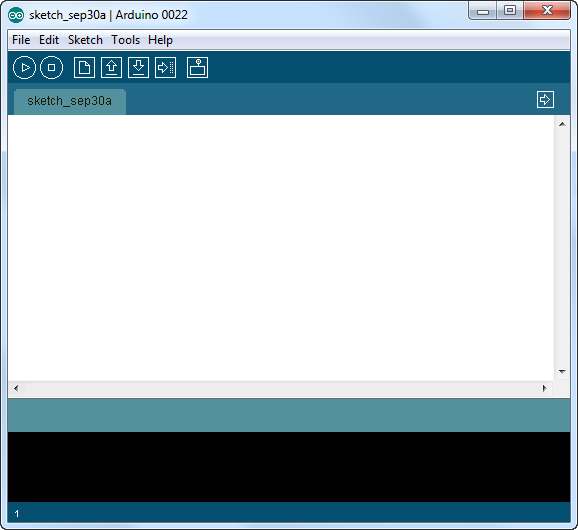
    The Arduino Development Software is downloaded and installed from http://www.arduino.cc. I’m running this on Windows 7 Ultimate 64Bit without any issues.
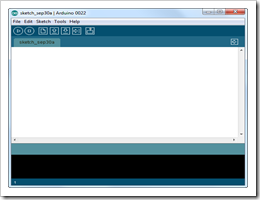
    SNAGHTMLaf57058  IMG_20110929_194717

    Connection

    The Arduino is connected via a USB cable (old style, massive end, no idea why they haven’t used micro usb!?). The lead is included in the pack. Once connected you have to jump through some hoops to install the drivers, but this is an issue with Win7, not the Uno. Details for doing this are in the included booklet.
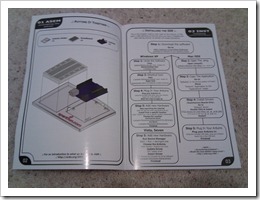
    IMG_20110929_194742 IMG_20110929_195223

    Once connected, the Uno will appear under a serial COM port in the Device Manager.

    Getting Started: 101

    The first ‘101’ project to build is a simple blinking LED. Yep I know this is no iPhone 5, but it’s a sensible starting point for a novice to learn the core features of the board.

    1. Using the provided pins, attach the CIRC-01 overlay on top of the breadboard.
    2. Build the circuit as described on the overlay.
    3. Connect the USB

    That’s it. If it’s all connected properly the LED will start blinking. This must be a default program (“Sketch”) that is already loaded into the board. But obviously a core part of this kit is to program it yourself. So;

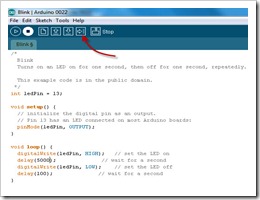
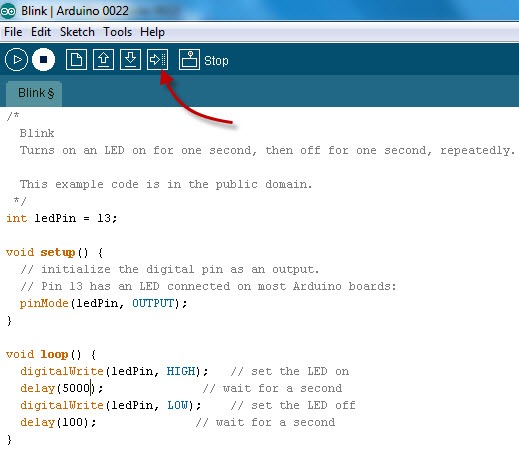
    1. In the Arduino Application, select File | Examples | 1. Basics | Blink. This will load a “blinking sketch” into the application.
    2. Modify the sketch, by changing some of the delays for example.
    3. Click the Upload button

    IMG_20110929_201200 IMG_20110929_195239

    The new Sketch will be uploaded to the Arduino and start immediately. With only a few tweaks to the Sketch you can setup a very simple morse code SOS blink:

    /*
    
      Morse SOS
    
      This example code is in the public domain.
    
     */
    
    int pinLed = 13;
    
    int dotDelay = 200;
    
    int dashDelay = 600;
    
    int letterPause = 1000;
    
    int loopPause = 2000;
    
    void setup() {
    
      // initialize the digital pin as an output.
    
      // Pin 13 has an LED connected on most Arduino boards:
    
      pinMode(pinLed, OUTPUT);
    
    }
    
    void loop() {
    
      // could be wrapped in a loop, but IMHO this reads better, so more maintainable.
    
      // S
    
      dot();
    
      dot();
    
      dot();
    
      cycleLed(letterPause);
    
      // O
    
      dash();
    
      dash();
    
      dash();
    
      cycleLed(letterPause);
    
      // S
    
      dot();
    
      dot();
    
      dot();
    
      cycleLed(loopPause);
    
    }
    
    void dot(){
    
      cycleLed(dotDelay);
    
    }
    
    void dash(){
    
      cycleLed(dashDelay);
    
    }
    
    void cycleLed(int cycleLedTime){
    
      digitalWrite(pinLed, HIGH);   // set the LED on
    
      delay(cycleLedTime);              // wait for a second
    
      digitalWrite(pinLed, LOW);    // set the LED off
    
      delay(cycleLedTime);
    
    }

    IMG_20110929_201147

    And we’re done. All in all, this took about 25-30 mins… so, what shall I build next?…hmmm…

  • The Art Of Unit Testing, TDD

    The Art Of Unit Testing, TDD

    My quote-of-the-day, regarding Test Driven Development:

    I am convinced that it [TDD] can work to your benefit, but it’s not without a price (time to learn, time to implement, and more). It’s definitely worth the admission price, though.

    Taken from the excellent The Art of Unit Testing: with Examples in .NET by Roy Osherove.

  • Microsoft Mocking

    Microsoft Mocking

    As a .NET developer I don’t like using third party controls when there is tooling available from MS that will do the job I need. For example I prefer using the “baked in” MSTest suit as opposed to NUnit or MBUnit.

    The same is true for a mocking framework. I have tried with varying levels of success to implement licenced and open-source variants, for example;

    • JustMock
    • TypeMocks
    • Moq
    • Rhino

    Then I found Microsoft Moles (part of the Pex toolkit) from MS Research labs. These tools are not officially released not supported, but they have matured for a couple of years, and whilst not as fully featured as something like JustMock, it has enough functionality to do what I need – simple mocking and stubbing and delegation of methods and properties.

    With Moles I managed stub my data access repository (with a little refactoring) with very satisfactory results:Real World: Unit Testing Queries Against Entity Framework (EF) Model / Repositories

  • Paperless Home

    Paperless Home

    Many, many years ago I had a flatbed scanner and that scanner had a gnatty ‘scan-to-email’ function that would email any scans as a PDF attachment.

    Many years later (but still many years ago) I signed up for the Google Documents online service and registered for their Email to Documents service. This was a hashed email address that would save attachments into the Google Docs cloud (and convert them if you wish).

    This combination of scan to email to cloud has had me literally salivating for years – it puts the paperless office within everyone grasp. So, finally after much procrastination I have finally got my act together, brought a duplex scanner (HP Officejet Pro 8500A Plus e-All-in-One Web Enabled Printer ), with a wireless internet connection ready to put my master plan in to action…

    After unboxing, what should I find?? A flipping Google Docs Storage Application! Yep, the scanner comes with a prebuilt in application that does exactly what I wanted… So, have I now got a paperless office? Well no, because the scanner also has a lovely printer function too, and to not use that would be a waste

  • Silverlight Tab Stops – IsTabStop

    Just found a tricky little quirk with TabStop that caused a fair bit of confusion. It turns out that the default implementation of ContentControl overrides Control, so implements the IsTabStop property, and defaults that value to true.

    ContentControl is implemented by the delightful BusyIndicator, so if you have used a BusyIndicator within the scope of a series of input controls you’ll see the Invisible Tab Stop behaviour.

    HINT: Using Silverlight Spy shows us where the offending property lies. You’ll need to re-template that to set the IsTabStop property to false.